Phone Calls
Connect your assistant to a real phone number so customers can call in and your business can call out. Once connected, the assistant can answer calls, collect information, qualify leads, schedule appointments, transfer callers to humans, and handle routine conversations like a member of your team.
What you can do
Receive inbound calls
Customers call your number and are connected to your assistant. The assistant can greet callers, answer questions, collect details, trigger actions, and hand off to a person when necessary.
Make outbound calls
Start calls directly from an assistant using Get Phone Call From Agent, or trigger them programmatically through the API for automated workflows. Common use cases include reminders, follow-ups, lead qualification, surveys, and re‑engagement.
Before you start
- A Vomyra account
- Business verification completed
- At least one configured assistant
- Sufficient wallet balance to purchase phone numbers
If you haven’t created an assistant yet, set that up before continuing.
Step 1: Get a Phone Number
Your assistant needs a phone number to place or receive calls. Vomyra supports Indian (+91) numbers and selected international regions. You can buy a new number from Vomyra or import a number you already own.
Buy a number from Vomyra
Dashboard → Phone Numbers → Buy Number. Choose a number based on your customers’ region (Indian +91, US, UK, and selected international regions). Instant activation is available in supported areas.
Import an existing number
Dashboard → Phone Numbers → Import. Bring in Twilio numbers, SIP trunks, or Bring Your Own Carrier (BYOC).
Number status
After purchase or import, a number will be Pending Verification, Active, Suspended, or Released. Indian numbers may require additional TRAI compliance checks (typically 1–2 business days).
Step 2: Attach the Number to an Assistant
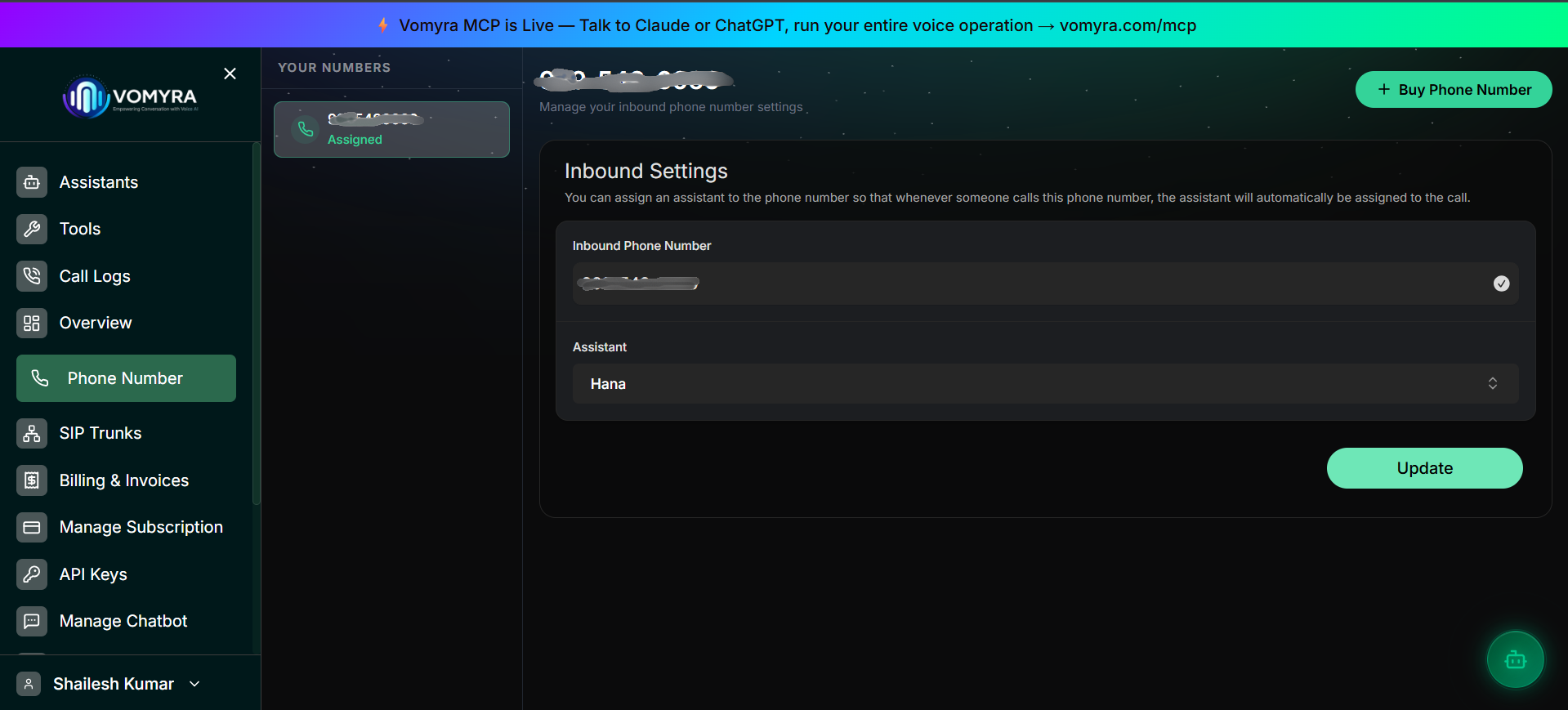
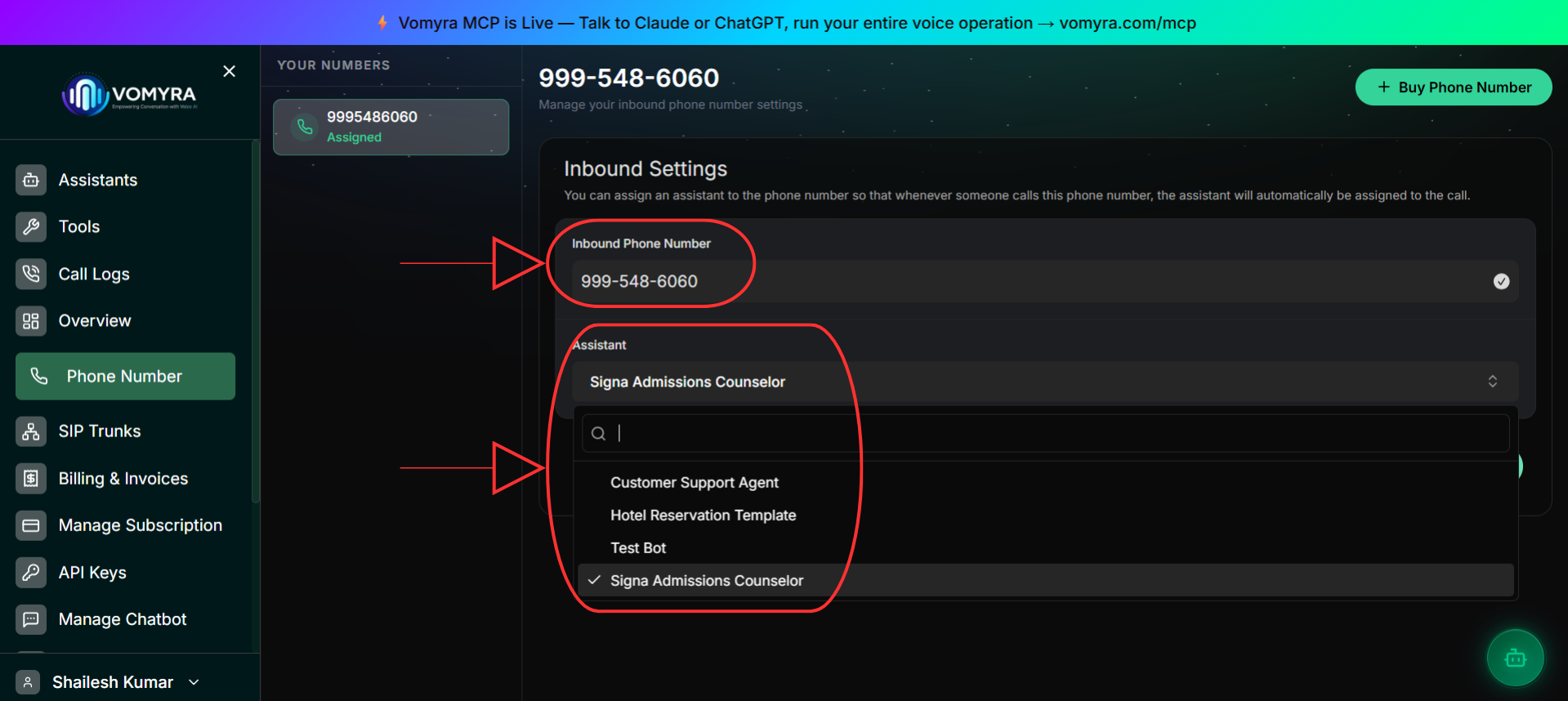
Once a number is active, you must assign it to an assistant before it can answer inbound calls. Numbers that are not assigned to an assistant cannot handle incoming calls. Each number can be attached to one assistant for inbound handling.
Dashboard → Phone Numbers → Select Number → Inbound Settings
- Open the phone number you want to configure.
- Under Inbound Settings, choose the assistant.
- Select a fallback action (transfer to human, voicemail, or hang up).
- Click Save.
Before going live, verify the assistant has a welcome message, the correct knowledge base attached, any required tools connected, and a transfer-to-human workflow if needed.
Step 3: Test Your Inbound Setup
Place a test call and confirm the assistant answers quickly, the greeting plays correctly, questions are handled, connected tools work, and fallback actions behave as intended.
Step 4: Make Outbound Calls
Outbound calls allow your assistant to proactively contact customers for follow-ups, reminders, lead qualification, surveys, and outreach.
Start an outbound call
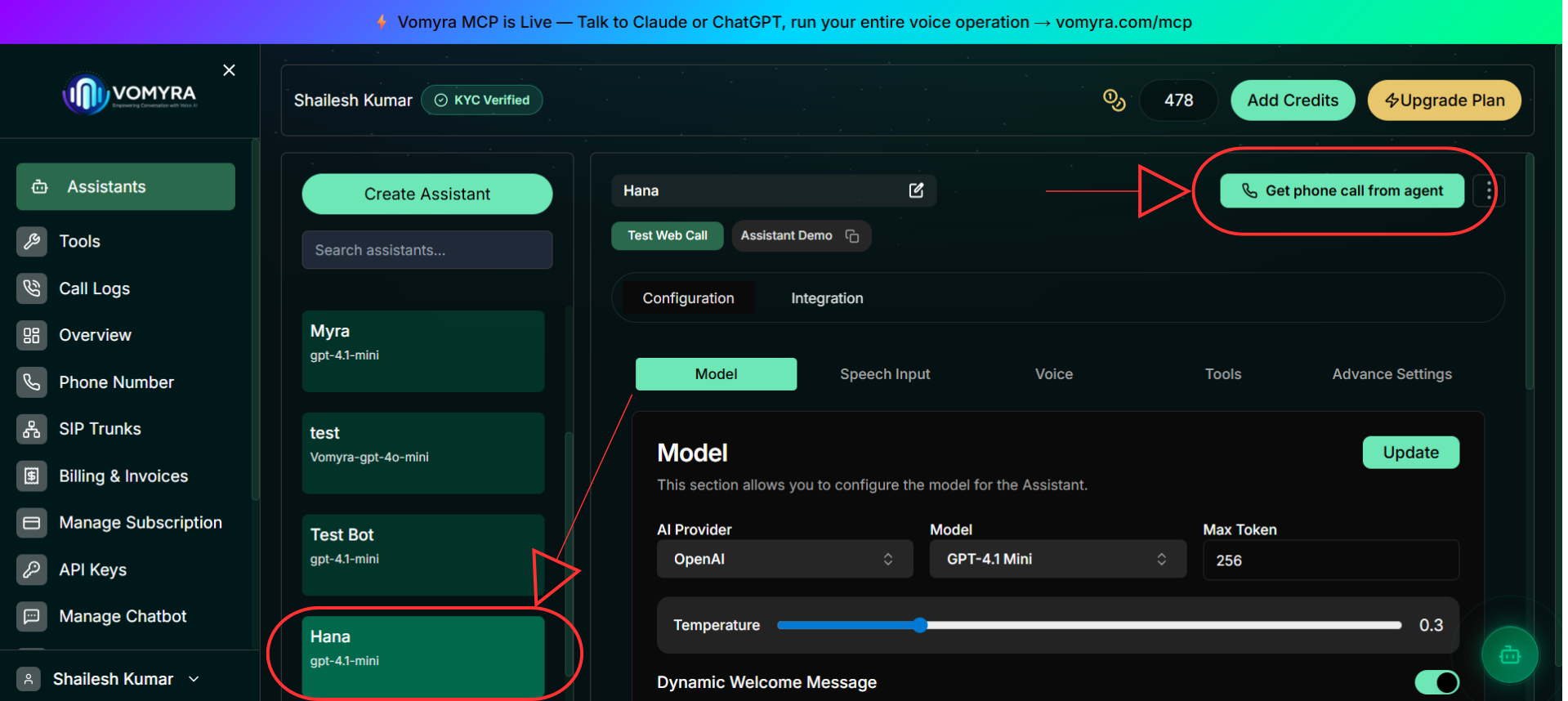
Dashboard → Assistants → Select Assistant
- Open the assistant you want to use for the call.
- Confirm a phone number has already been assigned to the assistant.
- Click Get Phone Call From Agent at the top of the assistant page.
- Enter the phone number you want the assistant to call.
- Start the call.
The assistant will place the call using its assigned phone number and handle the conversation automatically once the recipient answers.
Before placing outbound calls
Make sure:
- The assistant has an assigned phone number.
- The assistant's prompt and conversation flow have been tested.
- Any required tools or integrations are connected.
- Human transfer settings are configured if needed.
Step 5: Test Your Outbound Setup
Before launching customer outreach campaigns:
- Use Get Phone Call From Agent to call your own number.
- Verify the correct caller ID appears.
- Confirm the assistant introduces itself correctly.
- Test common conversation scenarios.
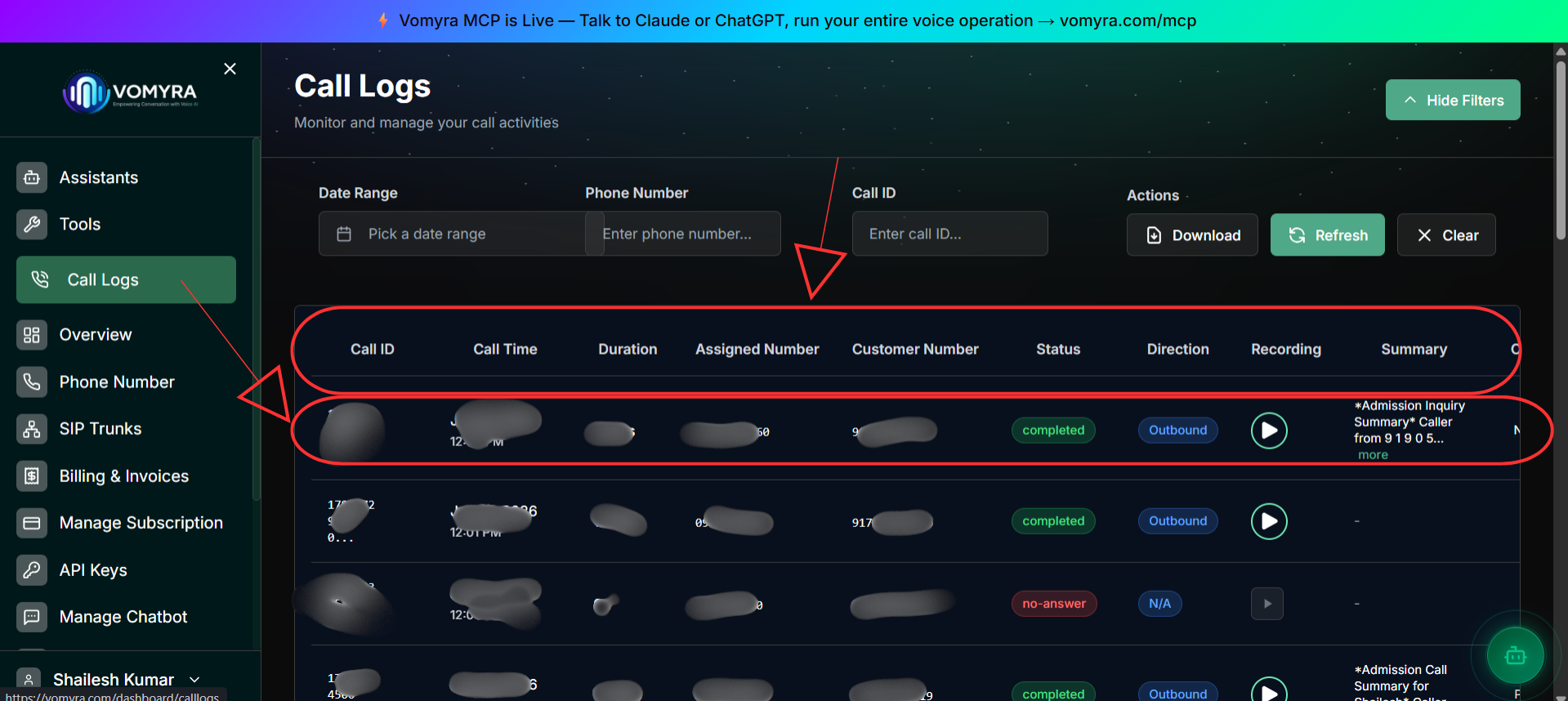
- Review the recording and transcript in Call Logs.
Once testing is complete, your assistant is ready for live outbound calling.
Step 6: Monitor Calls and Recordings
All calls are logged automatically in Dashboard → Call Logs. Use recordings, transcripts, and metadata (duration, cost, assistant, outcome, timestamps) to audit quality and improve the assistant. Call statuses include Queued, Dialing, Ringing, Connected, Completed, and Failed. Recordings are retained for 30 days by default; contact support for extended retention.
Common Questions
Can I use the same number for inbound and outbound calls?
Yes — a number can receive inbound calls and also be used as the caller ID for outbound calls.
Can my assistant transfer a call to a human?
Yes — add the Transfer to Human tool and configure the destination number and handoff conditions.
Which languages are supported?
Language support depends on your speech provider. Common Indian languages and English are supported based on configuration.
Why can't I receive calls yet?
If a number was recently purchased or imported it may be under compliance review. Check the number status in Phone Numbers.
Where are recordings and transcripts?
Recordings and transcripts are available under Call Logs in the dashboard.