Vomyra MCP Server
Manage your Vomyra assistants, tools, calls, and numbers using an AI tool like Claude - or wire it directly into your own code
What is Vomyra MCP Server?
Vomyra runs a hosted MCP (Model Context Protocol) server that any compatible AI tool can connect to. Once connected, you can manage your Vomyra voice assistants, tools, phone numbers, and calls through natural language - no clicking through the dashboard required.
Think of it as giving Claude or Cursor a direct line into your Vomyra account. You describe what you want in plain English, and the AI figures out which Vomyra actions to take and runs them for you.
- Endpoint
- https://console.vomyra.com/mcp
- Transport
- streamable-http (POST JSON-RPC 2.0)
- Auth
- OAuth 2.1 or x-api-key / Authorization: Bearer
- Scope
- mcp:tools
Why use it?
If you use AI tools in your daily work, or want to automate repetitive Vomyra tasks without touching the dashboard, MCP Server is the fastest way to get there.
Stop clicking through the dashboard
Tell Claude what you need in plain language - 'create a sales assistant with an Indian accent', 'start a call to this number', 'what were the last 5 calls?' - and it handles the rest.
Connects in minutes
Whether you use Claude.ai, Claude Desktop, Cursor, or your own code, you're up and running with a single URL - no custom plugins or integrations to build.
Your data stays in your account
All 24 tools are scoped to your account only. A connected client can only access your assistants, tools, calls, and numbers - nothing else.
Automate voice operations end-to-end
Create assistants, attach tools, assign phone numbers, and trigger outbound calls - all in a single conversation or automated script.
How it works
It's a one-time setup. After that, every conversation with your AI tool has live access to your Vomyra account.
Connect an AI tool
Point Claude.ai, Claude Desktop, Cursor, or your own code at https://console.vomyra.com/mcp - one URL, no plugins needed.
Sign in
Most AI tools handle this automatically - they'll open a sign-in window the first time. For code, just include your Vomyra API key.
Your tools are loaded
The AI tool automatically discovers the 24 available actions for your Vomyra account. They'll appear in the client's tool list.
Prompt naturally
Tell the AI what you want in plain language. It figures out which tools to call, runs them against your account, and reports back.
Connect from Cursor / Windsurf
Use an API key (see API key setup below) for the simplest setup:
{
  "mcpServers": {
    "vomyra": {
      "url": "https://console.vomyra.com/mcp",
      "type": "http",
      "headers": {
        "x-api-key": "<your Vomyra API key>"
      }
    }
  }
}
Custom code (TypeScript)
import { Client } from "@modelcontextprotocol/sdk/client/index.js";
import { StreamableHTTPClientTransport } from "@modelcontextprotocol/sdk/client/streamableHttp.js";

const transport = new StreamableHTTPClientTransport(
  new URL("https://console.vomyra.com/mcp"),
  {
    requestInit: {
      headers: { "x-api-key": process.env.VOMYRA_API_KEY! },
    },
  }
);

const client = new Client({ name: "my-app", version: "1.0.0" });
await client.connect(transport);

const { tools } = await client.listTools();
console.log(tools.map((t) => t.name));
// ? ["list_assistants", "create_assistant", "initiate_call", ...]
Install: npm install @modelcontextprotocol/sdk
Authentication
There are two ways to authenticate - one for interactive use, one for code and automation:
OAuth 2.1
Recommended for end-usersThe standard 'sign in with Vomyra' flow. Most AI tools (Claude.ai, Claude Desktop) handle this automatically - you just click to approve and you're in.
/.well-known/oauth-authorization-serverAuthorization server metadata (RFC 8414)
/.well-known/oauth-protected-resource/mcpProtected resource metadata - returned in WWW-Authenticate
/registerDynamic Client Registration - 5/hour/IP
/authorizeAuthorization endpoint, requires code_challenge (S256)
/tokenToken endpoint - authorization_code and refresh_token grants
/revokeToken revocation (RFC 7009)
Access token TTL
3 600 s (1 hour)
Refresh token TTL
2 592 000 s (30 days)
API Key
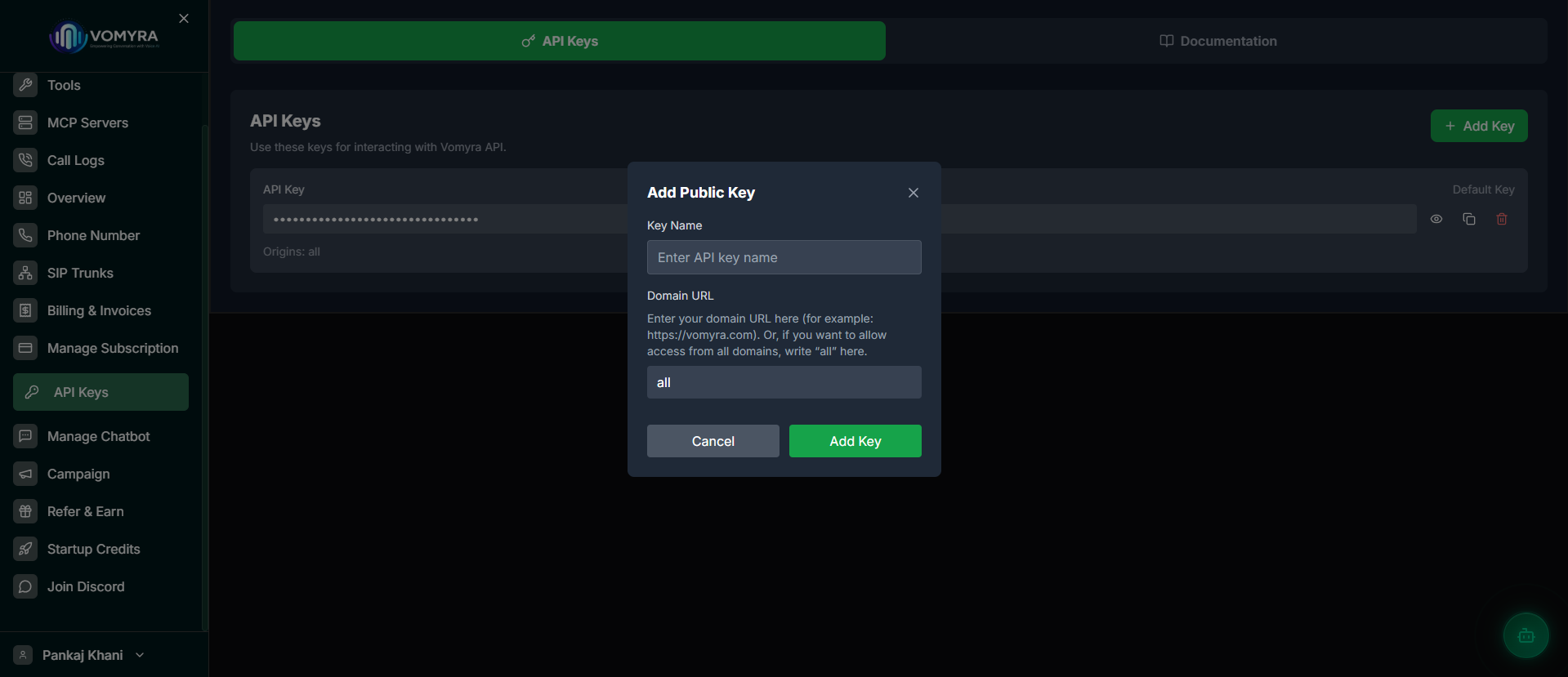
Recommended for backendsGenerate a key from Dashboard ? API Keys, then send it on every request:
x-api-key: <your key>

# or

Authorization: Bearer <your key>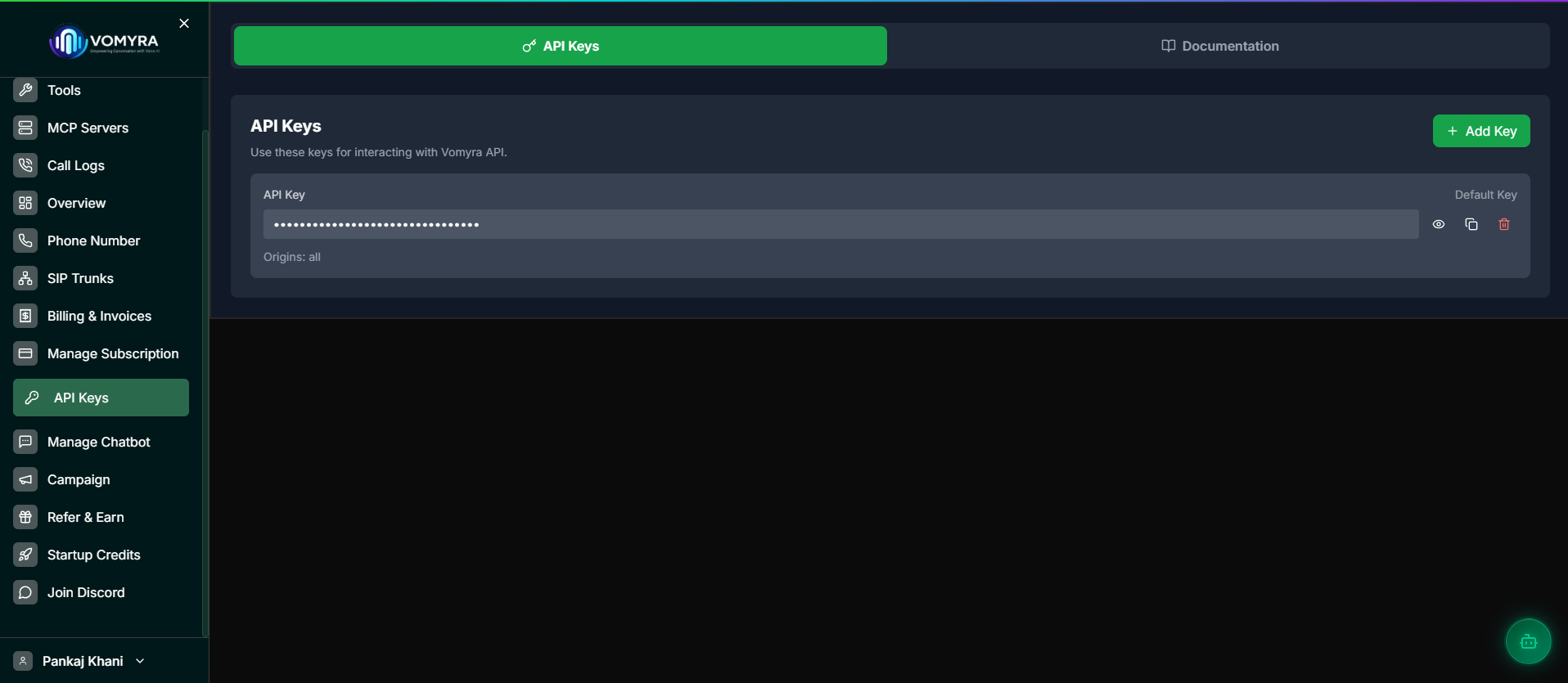
When to use Vomyra MCP Server
MCP Server works well for most assistant management and automation scenarios today. A few areas are still being developed - check the limitations section before building around them.
Good fit today
- Testing and setting up your assistants
- Managing assistants and tools through an AI agent
- Running controlled outbound call workflows
- Building internal automation around your voice setup
Not ready yet for
- Giving end-users open-ended control - more specific permissions are still being built
- Account-wide admin tasks - MCP is scoped to your own data, not team settings
- Automating anything that could affect billing without additional safeguards
- Full platform management - see the limitations section for what's not yet available
Not what you need?
Your voice assistant needs to reach out to external tools during a live call
Use MCP Client insteadExample workflows
These are real prompts you can try once Vomyra is connected to your AI tool.
Create an assistant and call yourself
Prompt:"Create a Hindi sales assistant called 'Aarti'"
create_assistant(name: "Aarti", system_prompt: "...", welcome_message: "...")Prompt:"Use the Azure Aarti voice and switch the LLM to Groq llama 3.3"
list_assistant_options(section: "voice")
update_assistant_voice(assistant_id: ..., voice_provider: "azure", voice_name: "hi-IN-AartiNeural")
update_assistant_model(assistant_id: ..., ai_provider: "groq", model: "llama-3.3-70b-versatile")Prompt:"Call me on +919876543210, my name is Pankaj"
initiate_call(assistant_id: ..., customer_number: "+919876543210", customer_name: "Pankaj", call_mode: "demo")Wire an API tool into an assistant
Prompt:"What tool types can I create?"
list_tool_types() ? returns catalog with _id valuesPrompt:"Create an API tool that hits https://api.spicegarden.com/v1/orders?id={order_id}"
create_tool(
  tool_catalog_id: "<apiRequest id>",
  name: "lookup_order",
  description: "Looks up a Spice Garden order by id",
  function_config: {
    request_url: "https://api.spicegarden.com/v1/orders",
    request_http_method: "GET",
    authentication: { type: "bearerToken", ... },
    parameters: [{ name: "order_id", type: "string", required: true }]
  }
)Prompt:"Attach it to my support agent"
list_assistants()
assign_tools_to_assistant(assistant_id: ..., tool_ids: [...])
Audit recent calls
Prompt:"Show me the last 5 calls and summarize any that failed"
list_calls(limit: 5)
get_call(call_id: ...)  ? for each failed call
Rate limits
Every response includes headers showing how many requests you have left (X-RateLimit-Remaining) and your limit (X-RateLimit-Limit). If you hit the limit, you'll get a 429 error - wait until the time shown in Retry-After before trying again.
Error model
Connection-level problems (like authentication failures or rate limits) come back as error objects. Errors within a specific tool (like 'assistant not found') come back as a normal tool result marked with isError: true - not as connection errors.
Tools at a glance
All 24 tools and 3 read-only resources are scoped to your account - everything you do through MCP affects only your own assistants, tools, numbers, and calls.
Assistant tools
10 toolslist_assistantsShow all your voice assistants with a quick summary of each one.
Returns
Name, id, AI provider, voice provider, and tool count for each assistant.
get_assistantGet the complete settings for a specific assistant - voice, model, language, and assigned tools.
Required
assistant_id (MongoDB ObjectId)Returns
The assistant's full configuration including AI model, voice settings, language, and attached tools. Voice-specific options (like ElevenLabs stability) are only shown when relevant.
create_assistantCreate a new voice assistant. You can set a name, give it instructions, and define its opening message.
Required
nameOptional
system_promptwelcome_messageupdate_assistantUpdate an assistant's name, instructions, opening message, or attached tools. For voice, model, or language changes, use the dedicated tools below.
Required
assistant_idOptional
assistent_namesystem_promptwelcome_messageselected_tools (string[])To change voice, model, or language use update_assistant_voice, update_assistant_model, or update_assistant_language respectively.
update_assistant_voiceChange how the assistant sounds. Only the fields you include are updated - everything else stays the same.
Required
assistant_idOptional
voice_provider (azure | elevenlabs | cartesia | openai | vomyra | xai | mistral)voice_namevoice_languagevoice_speedstability (ElevenLabs)similarity_boost (ElevenLabs)emotion (Cartesia)Run list_assistant_options first to see valid voice names - using an invalid name will return an error.
update_assistant_modelSwitch the AI brain behind the assistant - choose a different provider or model.
Required
assistant_idOptional
ai_provider (openai | groq | vomyra | xai)model (e.g. gpt-4.1-mini, llama-3.3-70b-versatile, grok-4-1-fast-non-reasoning)update_assistant_languageChange which language(s) the assistant listens in and how it transcribes speech.
Required
assistant_idOptional
transcription_provider (azure | deepgram | openai | gladia | cartesia | groq | mistral)languages (single string e.g. hi-IN, or array of up to 4 for multilingual)language_selection_mode (Azure only: single | multiple)list_assistant_optionsShows all available AI models, voices, and speech-to-text providers. Always up to date - what you see here matches exactly what the dashboard shows.
Optional
section (ai | voice | stt - omit for all)delete_assistantPermanently delete an assistant and all its settings.
Required
assistant_idThis action is irreversible. The assistant and all its configuration are removed.
assign_tools_to_assistantSet the full list of tools an assistant can use during calls.
Required
assistant_idtool_ids (string[])This replaces the whole tool list at once. If you want to add one tool, include all the existing tools plus the new one.
Tool management
6 toolslist_toolsShow all the tools you've created. Hidden system tools are not included.
get_toolGet the complete configuration of a specific tool, including its API settings.
Required
tool_idcreate_toolCreate a new tool for your assistants to use. Run list_tool_types first to see what types are available and get the required catalog ID.
Required
tool_catalog_idnamedescriptionOptional
when_to_call (beforeCall | onCall (default) | afterCall)function_configFor API-based tools, you'll need to specify the URL, HTTP method, authentication, and any parameters the tool accepts.
update_toolUpdate an existing tool. Only the fields you include are changed - except function_config, which is always replaced in full.
Required
tool_idOptional
namedescriptionwhen_to_callfunction_configdelete_toolPermanently delete a tool.
Required
tool_idThis action is irreversible.
list_tool_typesShow the types of tools available to create through MCP. Not all tool types are listed - only the ones you can create via MCP.
Call tools
5 toolsinitiate_callStart an outbound phone call to a customer. Works the same way as clicking 'Get phone call from agent' in the dashboard.
Required
assistant_idcustomer_number (E.164, e.g. +919876543210)customer_nameOptional
call_mode (auto (default) | live | demo)assigned_number (required in live mode with multiple numbers)customer_country_codeadditional_data (arbitrary object passed into call context)auto: uses your assigned number if you have one, otherwise falls back to a shared demo number. live: always uses your assigned number (returns an error if none is assigned). demo: always uses a shared demo number. Common errors: 402 = not enough credits | 404 = assistant not found, or no assigned numbers in live mode | 503 = no demo numbers available right now, try again shortly.
list_assistant_numbersShow all phone numbers currently assigned to a specific assistant.
Required
assistant_idend_callMark a call as ended in Vomyra's records. The call duration is calculated from when it started to now.
Required
call_idThis only updates Vomyra's records - it doesn't actually end the phone call. The caller and telephony provider are unaffected until the call ends normally.
get_callGet the full details for a specific call, including the complete conversation transcript.
Required
call_idlist_callsGet a list of your recent calls. Returns up to 100 at a time, newest first.
Optional
page (default 1)limit (default 20, max 100)Number tools
3 toolslist_numbersShow all your phone numbers, grouped by whether they're assigned to an assistant or not. Includes the provider, status, country, and which assistant each number is assigned to.
assign_number_to_assistantConnect one of your phone numbers to an assistant. If the number was already assigned to something else, this will override it.
Required
phone_number (E.164)assistant_idunassign_number_from_assistantDisconnect a phone number from its assistant. The number stays in your account - it's just no longer active on any assistant.
Required
phone_number (E.164)Read-only resources
3 resourcesThese are read-only snapshots your AI tool can use as context. Think of them as quick lookup pages - ask for the resource and get back the current data for your account.
vomyra://assistantsFull list of the user's assistantsvomyra://toolsFull list of the user's toolsvomyra://calls20 most recent callsWhat MCP cannot do today
- Billing, subscriptions, credits, and invoice workflows
- KYC (identity verification) and onboarding flows
- Buying new phone numbers (you can assign existing ones, but not purchase through MCP)
- Analytics settings and dashboards
- Changing your subscription plan
- User and team management
- White-label, referral, and admin settings
- Uploading knowledge base files or documents for your assistants
- Notification preferences
Need any of these via MCP? File a request with support@vomyra.com.
Roadmap
Granular permissions
Right now everything is under one permission (mcp:tools). We're splitting this into fine-grained controls - read-only vs. write access, per category (assistants, tools, calls, numbers).
Activity log for MCP
A detailed log of every action taken through MCP, with the specific client that triggered it.
Real call hang-up
Make end_call actually end the phone call on the telephony side - not just update the record in Vomyra.
Clearer consent screen
Show users exactly which Vomyra tools an AI client is requesting access to, before they approve.