
Connect MCP Servers to Myra
Let Myra look up real data and take real actions mid-call - from your CRM, calendar, project tools, or any custom system
What is MCP Client?
MCP Client gives Myra the ability to reach out to external services during a live call. While someone is speaking with Myra, she can check real data - like a customer's account, an appointment slot, or an order status - and take actions in other systems, all in real time. No custom wiring needed on your end. Any service that speaks MCP works out of the box.
The external service you connect stays completely separate from Vomyra. You just tell Vomyra where it lives and how to authenticate, and Vomyra handles all the communication automatically during calls.
Linear
Create or search support issues during a call. The caller mentions a problem - Myra logs it instantly.
Notion
Pull up or update information from your Notion workspace while on a call.
GitHub
Look up issues, pull requests, or repository details without leaving the conversation.
Custom server
Connect your own internal systems - order tracking, CRM records, scheduling, or any custom workflow you've built.
Why use it?
Myra is only as helpful as the information she can access. MCP Client bridges the gap between what a caller asks and what your systems actually know.
Real answers, not guesses
Myra answers with real, up-to-date information - order status, appointment slots, customer history - instead of guessing or giving outdated answers.
Works with any MCP-compatible tool
Connect Linear, Notion, GitHub, or your own systems without writing a custom integration for each one. If it speaks MCP, it works.
Your credentials stay private
Your API keys and tokens are encrypted and never visible to anyone after you save them. Myra only ever sees the results - not how it got them.
You decide what it can do
You approve exactly which actions Myra is allowed to take. Even if the external system offers more, Myra only gets access to what you've approved.
How it works
When a call starts, Vomyra loads all the external services attached to Myra and makes their tools available. Myra can then use those tools naturally mid-conversation - the caller never notices anything different.
A call begins
When a call starts, Vomyra loads Myra and checks which external services are connected to her.
Tools are loaded
Vomyra connects to each external service, fetches the list of available actions, filters down to what you've approved, and adds them to Myra's toolkit for this call.
Myra takes action
During the conversation, Myra decides she needs to use an external tool. Vomyra sends the request to the right service automatically.
Myra gets the answer
The external service handles the action and returns the result. Myra picks it up and continues the conversation naturally.
If one external service is unreachable when the call starts, Myra simply continues without those tools - the rest of the call isn't affected.
Before you start
- A Vomyra account with at least one agent created
- The URL of the external service you want to connect (it must support the MCP standard)
- Login credentials for that service, if it's not publicly accessible
How to set it up
All setup happens in the Vomyra dashboard - no code required.
- 1
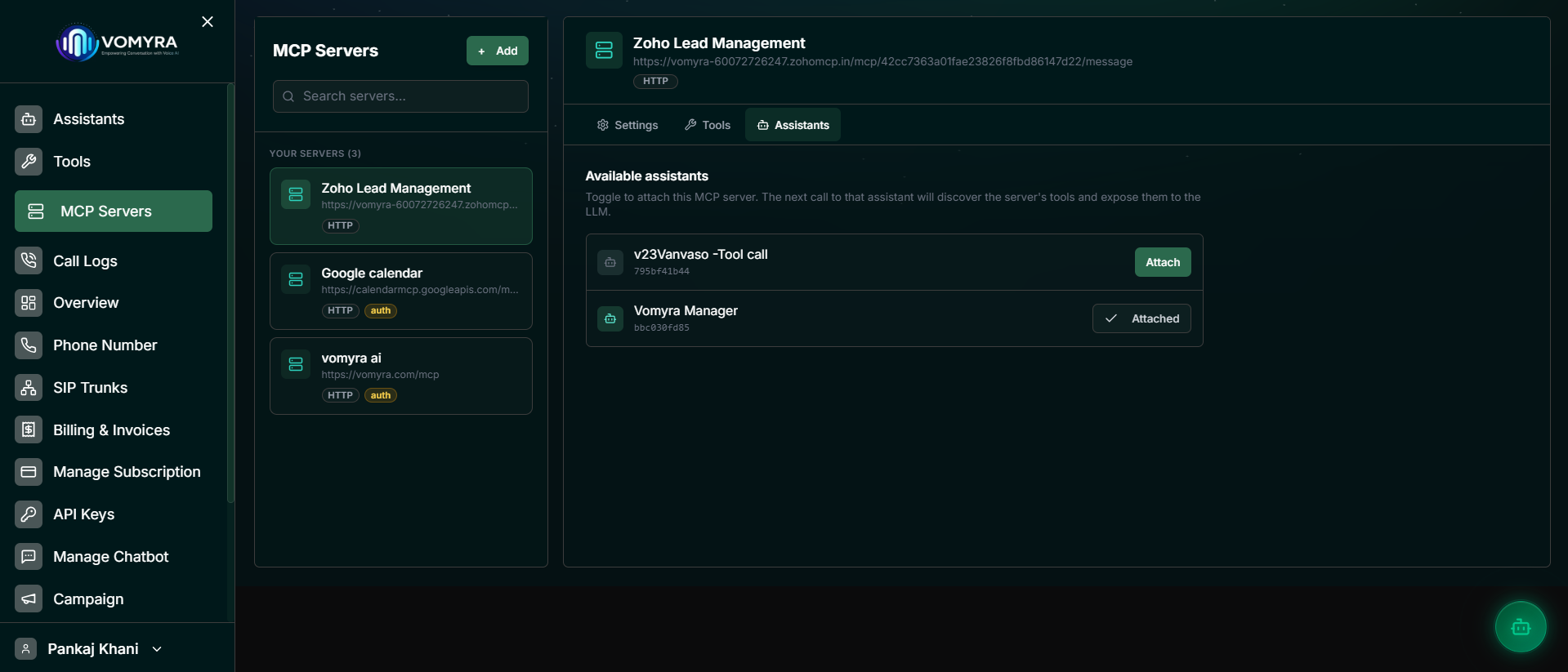
Open MCP Servers
Go to Dashboard ? MCP Servers. This page lets you add servers, test connections, whitelist tools, and attach servers to agents.
- 2
Add a server
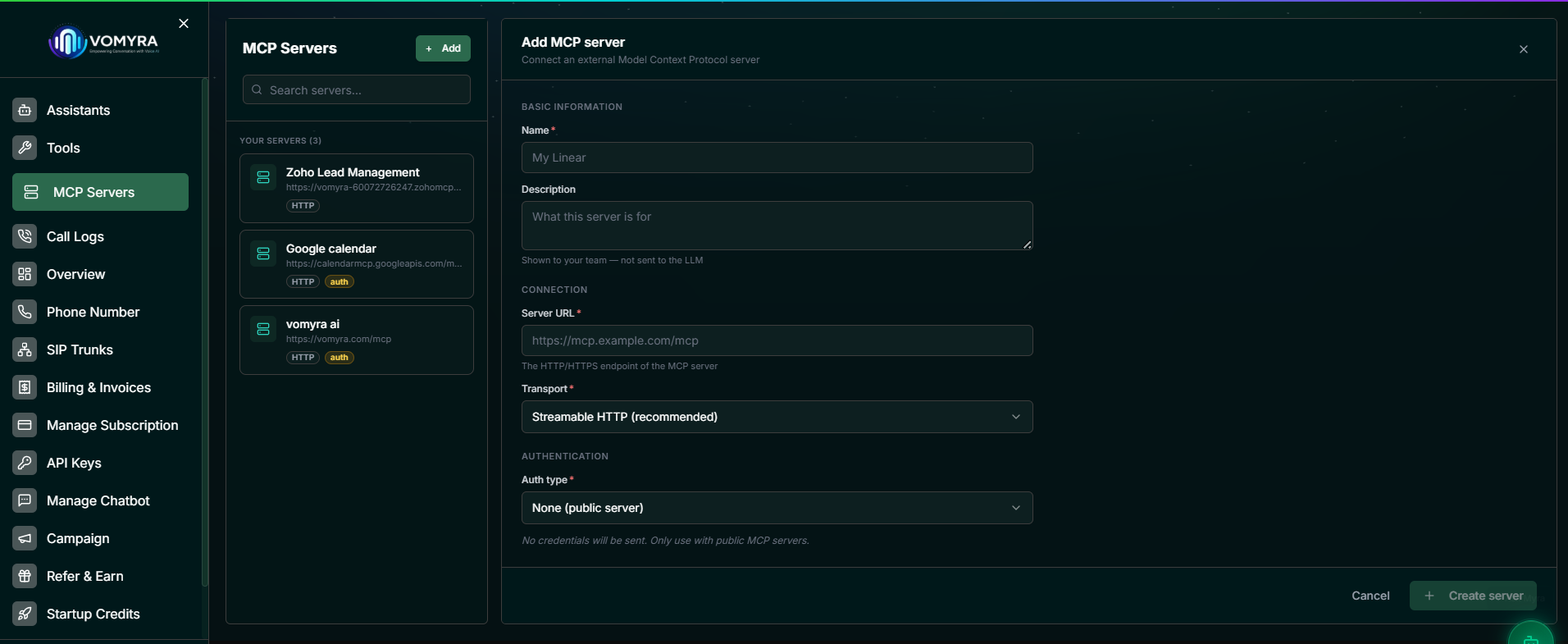
Click Add or Add a custom server and fill in the fields:
FieldNotesRequiredNameHuman-readable label, e.g. Linear ProductionYesDescriptionInternal note - not sent to the LLMNoServer URLThe web address of the external service's MCP endpointYesTransportHow Vomyra talks to the service. Streamable HTTP works for almost everything - use SSE only if the service requires it.YesAuth typeHow Vomyra proves it's allowed to use the service. Choose based on what your service needs.YesWhen in doubt, use Streamable HTTP. Only switch to SSE if the external service's documentation specifically requires it.
- 3
Configure authentication
Choose the auth mode that matches your external service. All credentials are encrypted immediately after saving and are never shown again.
NonePublic serversThe service is open to anyone - no login needed. Only use this for truly public MCP servers.
Bearer TokenMost commonThe most common option. Paste in your API token and Vomyra sends it securely with every request. The token is encrypted and never shown again after saving.
Custom HeaderFlexibleFor services that need a specific authentication header like X-API-Key. You can send up to 20 custom headers, and all values are encrypted.
OAuth 2 Refresh TokenGoogle APIsUsed when you've already authorized a service (like Google) through its own OAuth flow and have a refresh token. Vomyra handles renewing the access token automatically.
OAuth 2 - what you'll need
client_idrequiredrefresh_tokenrequiredtoken_urlrequired - e.g. https://oauth2.googleapis.com/token for Googleclient_secretoptionalscopeoptional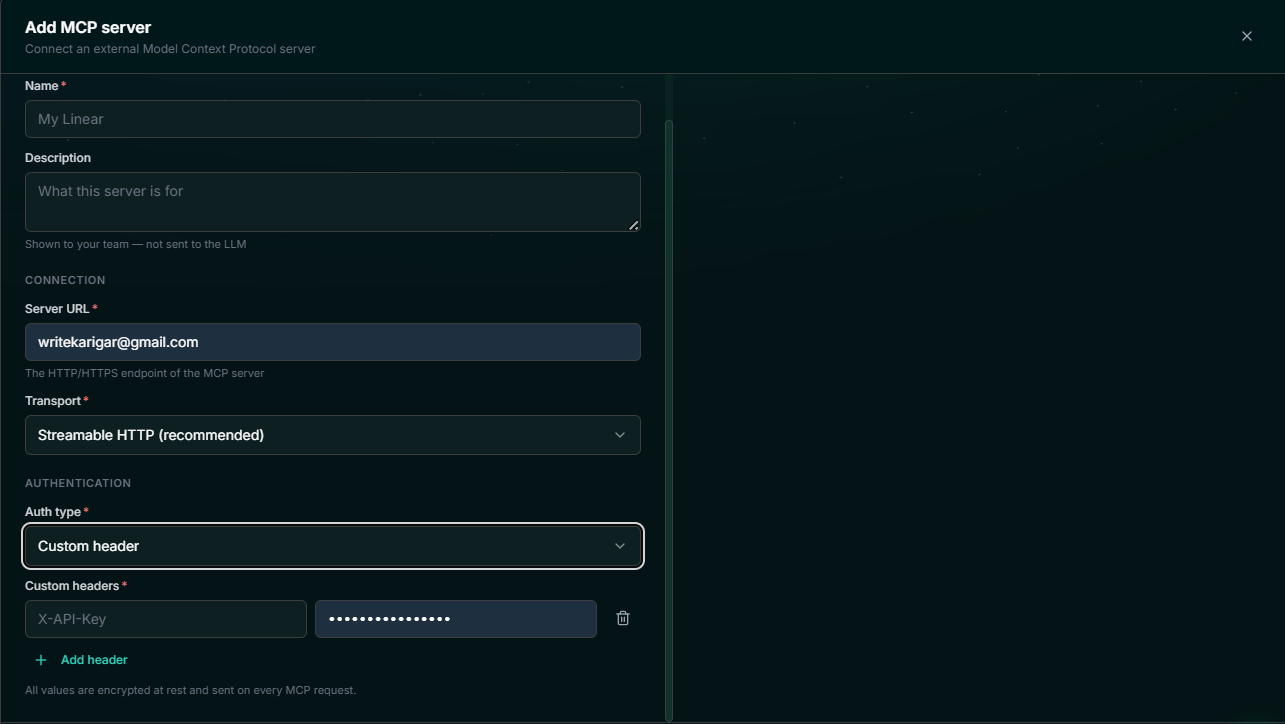
- 4
Create the server
Click Create server. Vomyra saves the connection and encrypts all credentials. After this step, the server appears in your MCP Servers list.
- 5
Test the connection
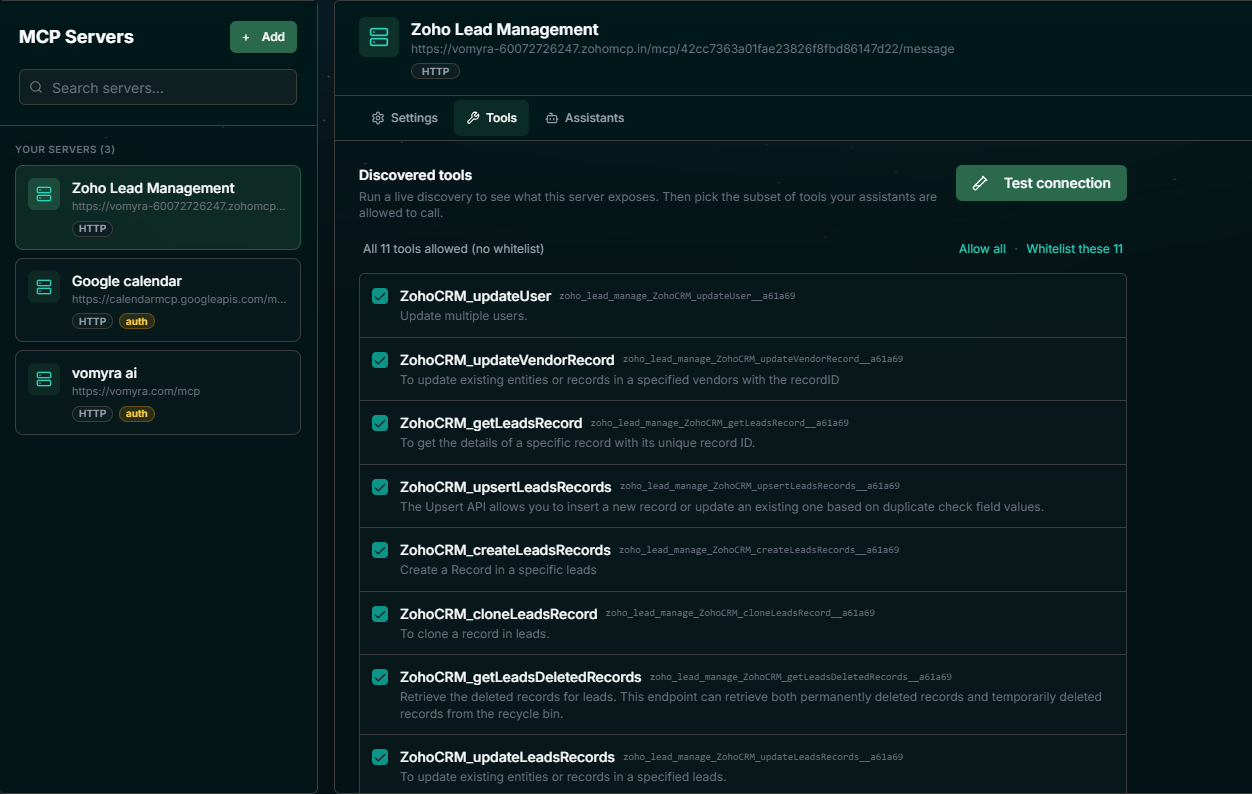
Open the server's Tools tab and click Test connection. Vomyra connects to the external service and shows you everything it found:
- What the tool is called on the external service's side
- The simplified name Myra uses to call it
- A description and what information it needs to run
- 6
Whitelist tools
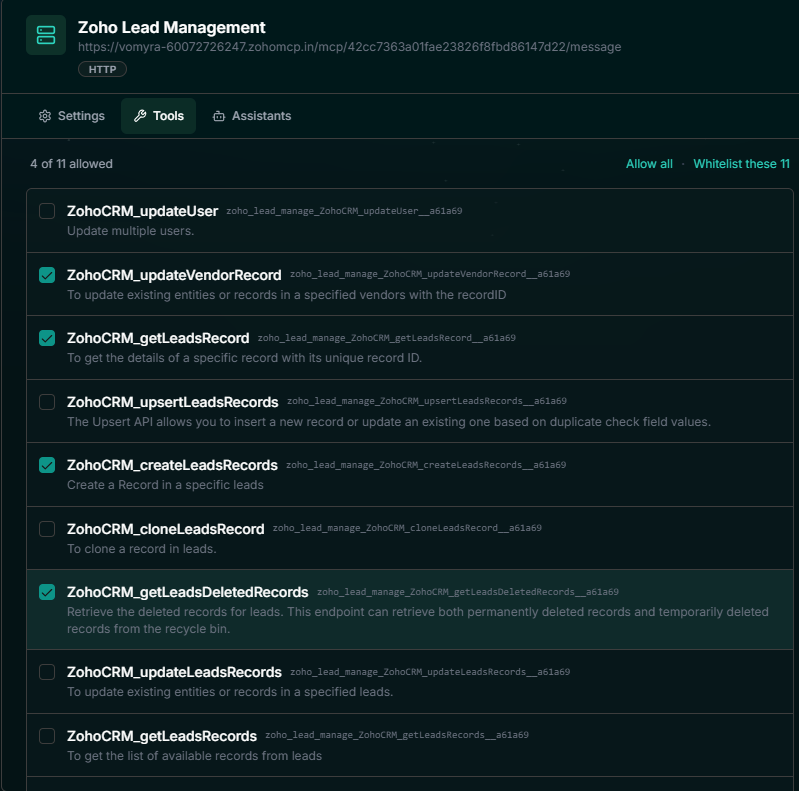
By default, all discovered tools are available. To restrict which tools Myra can call, use the whitelist:
Allow allLeave the whitelist empty to give Myra access to every tool the service offers.Whitelist these NAllow only the specific tools shown in the test - a quick way to lock down access.Individual checkboxesPick exactly which tools Myra can use, one by one.As a best practice, only give Myra access to the tools she actually needs. The whitelist is checked both when the call starts and each time a tool is used.
- 7
Attach to assistants
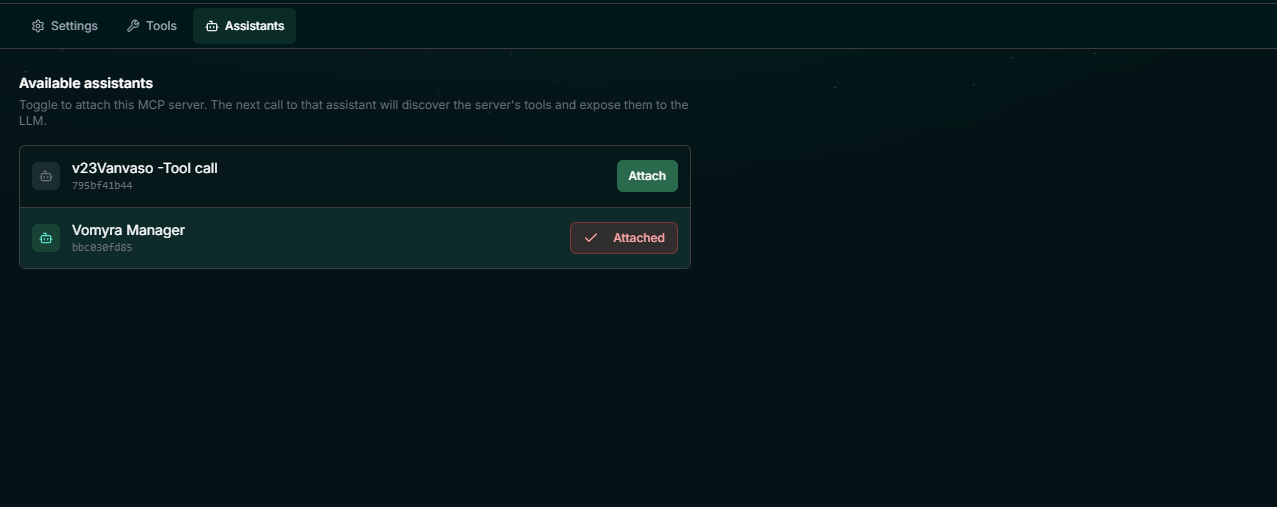
Open the Assistants tab and toggle Attach for each agent that should use this server. One MCP server can be attached to multiple agents.
Calls already in progress do not pick up newly attached servers - only new calls started after attaching will have access.
- 8
Test with a call
Start a test call or normal call. Ask Myra to use one of the external tools - she should discover and invoke it automatically.
When to use MCP Client
Use MCP Client whenever Myra needs to do more than talk - looking something up, creating a record, or triggering an action in another system during a live call.
Good fits for MCP Client
- Myra needs to look up or update data in another system during a live call
- A customer asks about their order, ticket, appointment, or account in real time
- You want Myra to automatically create records or trigger a workflow mid-conversation
- You're connecting a public or private MCP server to your voice workflow
Not what you need?
You want to manage Vomyra from Claude, Cursor, or another AI client
Use MCP Server insteadYou need to update agent settings or start calls from an AI tool
Use MCP Server insteadExample providers
Any HTTP or SSE MCP server works. Here are common starting points:
Linear
- URL
- https://mcp.linear.app/mcp
- Auth
- Bearer token - Generate an API key at linear.app ? Settings ? API
- Tools
create_issuesearch_issuesupdate_issue
Notion
- URL
- https://api.notion.com/mcp
- Auth
- Bearer token - Use your Notion integration token
- Tools
searchget_pageupdate_block
GitHub
- URL
- https://api.githubcopilot.com/mcp
- Auth
- Bearer token - Use a GitHub personal access token
- Tools
list_issuescreate_issueget_pull_request
Custom / Internal
- URL
- https://your-server.com/mcp
- Auth
- Bearer token or Custom header - Build your own MCP server using the official MCP SDK to expose any internal API
- Tools
check_order_statusupdate_crm_recordschedule_job
Some tools - like GitHub search queries - can return a lot of data at once. Too much data can confuse or overwhelm the AI. Make sure your tools return focused, relevant results and test them with realistic requests before going live.
Limits
Troubleshooting
Test connection fails
- Make sure the service's URL is accessible from the internet (not just your local network)
- Make sure the connection type (HTTP or SSE) matches what the external service expects
- Double-check your credentials - even a small typo will cause a failure
- Confirm the service is set up as a proper MCP server and can list its tools
Server saves but no tools appear during calls
- Run 'Test connection' first - tools won't load during calls until the connection is verified
- Confirm the server is attached to your agent
- Start a new call after attaching (calls already in progress won't pick up new connections)
- Make sure your whitelist isn't accidentally blocking everything
Some tools are missing
- The tool might be blocked by your whitelist - check and add it if needed
- The external service may not have included it when listing available tools
- If the service offers more than 200 tools, only the first 200 are loaded - the rest are ignored
Tool runs but returns an error
- Your credentials may have expired - update them and run the connection test again
- The AI may have sent the wrong format or values - check what the tool expects as input
- The external service might be responding too slowly - check its response time or increase the timeout
API reference
If you prefer to manage MCP connections through code rather than the dashboard, all the same operations are available via the Vomyra REST API.
/api/mcp-serversList all MCP server connections
/api/mcp-serversCreate a new MCP server connection
/api/mcp-servers/:idGet one server (includes attached_assistant_ids)
/api/mcp-servers/:idUpdate name, URL, auth, or whitelist
/api/mcp-servers/:idDelete server - detaches from all assistants
/api/mcp-servers/:id/testTest connection and discover remote tools
/api/mcp-servers/:id/attachAttach server to an assistant
/api/mcp-servers/:id/attachDetach server from an assistant
Example: create a server with Bearer token auth
{
  "name": "Linear",
  "description": "Linear workspace tools",
  "server_url": "https://mcp.linear.app/mcp",
  "transport": "http",
  "auth": {
    "type": "bearer",
    "token": "lin_api_..."
  }
}
Example: create a server with Custom header auth
{
  "name": "Internal CRM",
  "server_url": "https://crm.yourbusiness.com/mcp",
  "transport": "http",
  "auth": {
    "type": "header",
    "headers": [
      { "name": "X-API-Key", "value": "secret" },
      { "name": "X-Tenant",  "value": "yourtenant" }
    ]
  }
}
Example: optional advanced fields
allowed_toolsstring[]Remote tool names to expose. Empty or omitted means all tools.tool_name_prefixstringCustom prefix for adapted function names. Defaults to the server name.timeout_msnumberPer-tool remote execution timeout in milliseconds.providerstringDisplay/provider hint - e.g. linear, notion, custom.Current limitations
- Only web-accessible services are supported (HTTP/HTTPS). Services running only on your local machine won't work.
- You can't use a standard 'sign in' popup for external services that need OAuth - you'll need to get a refresh token from that service manually.
- Only tool actions are supported. Resources (like files) and prompt templates from external services are not.
- Some advanced settings (like custom tool name prefixes or timeout adjustments) can only be set via the API, not the dashboard.