
Connect to Claude
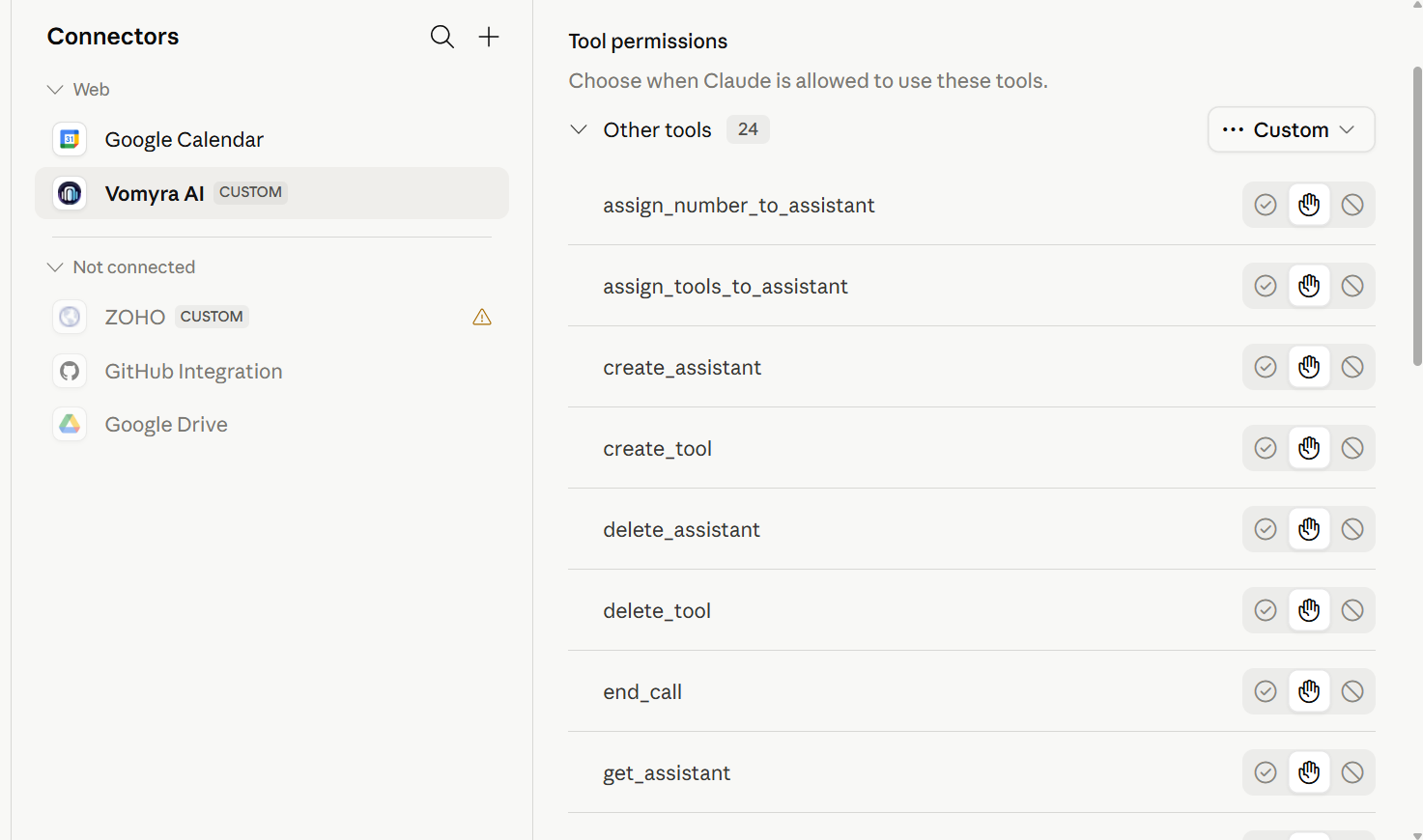
Connect Claude.ai or Claude Desktop to manage your Vomyra assistants, tools, calls, and numbers.
Connect from Claude.aiRecommended
Claude.ai handles the sign-in flow automatically. You only need to add the connector once - it stays connected and refreshes quietly in the background.
- 1
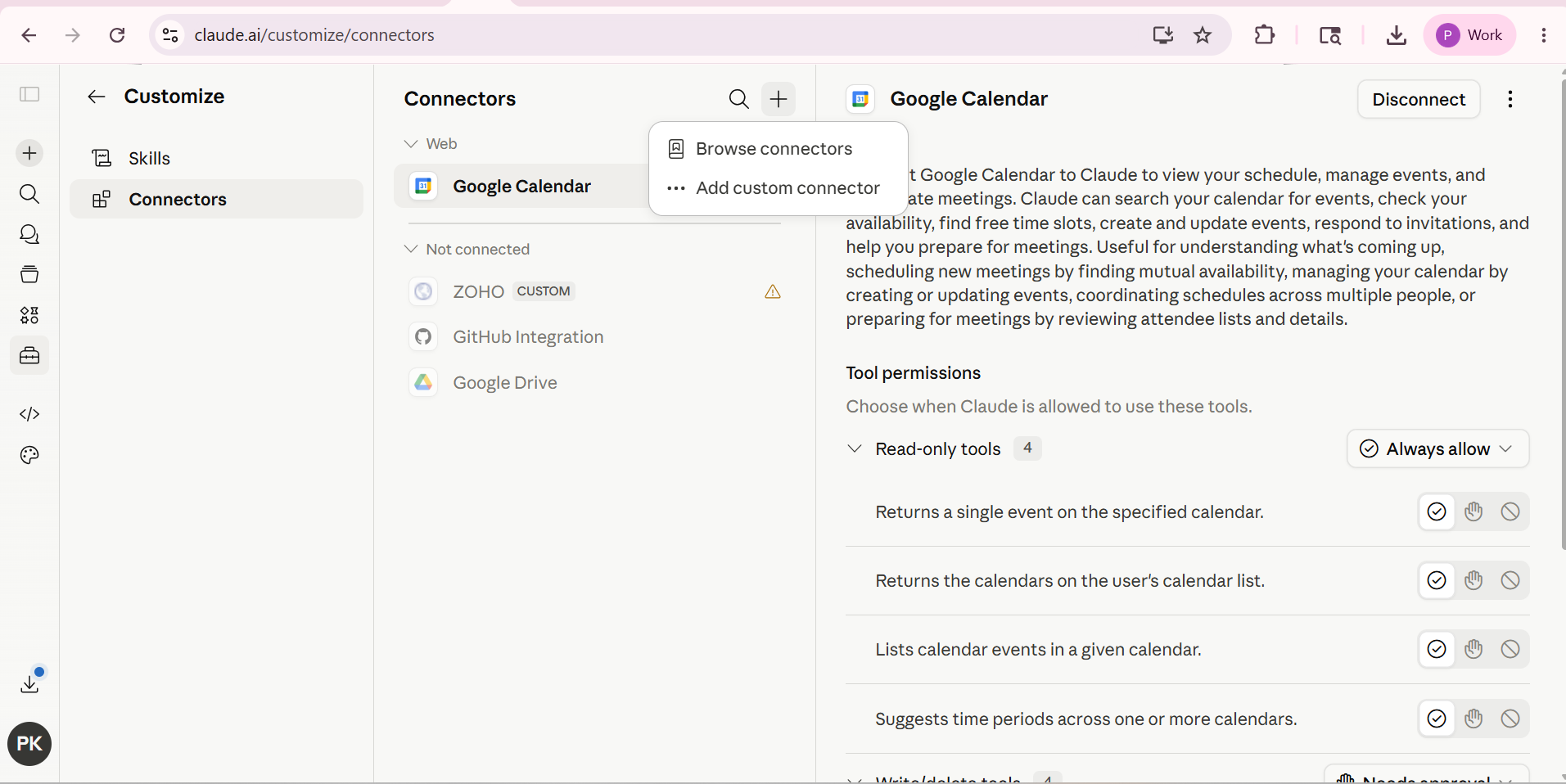
Open Connectors settings
Go to claude.ai → Settings → Connectors → Add custom connector.
- 2
Enter the MCP URL
Give it a name (e.g.
Vomyra) and paste:https://console.vomyra.com/mcp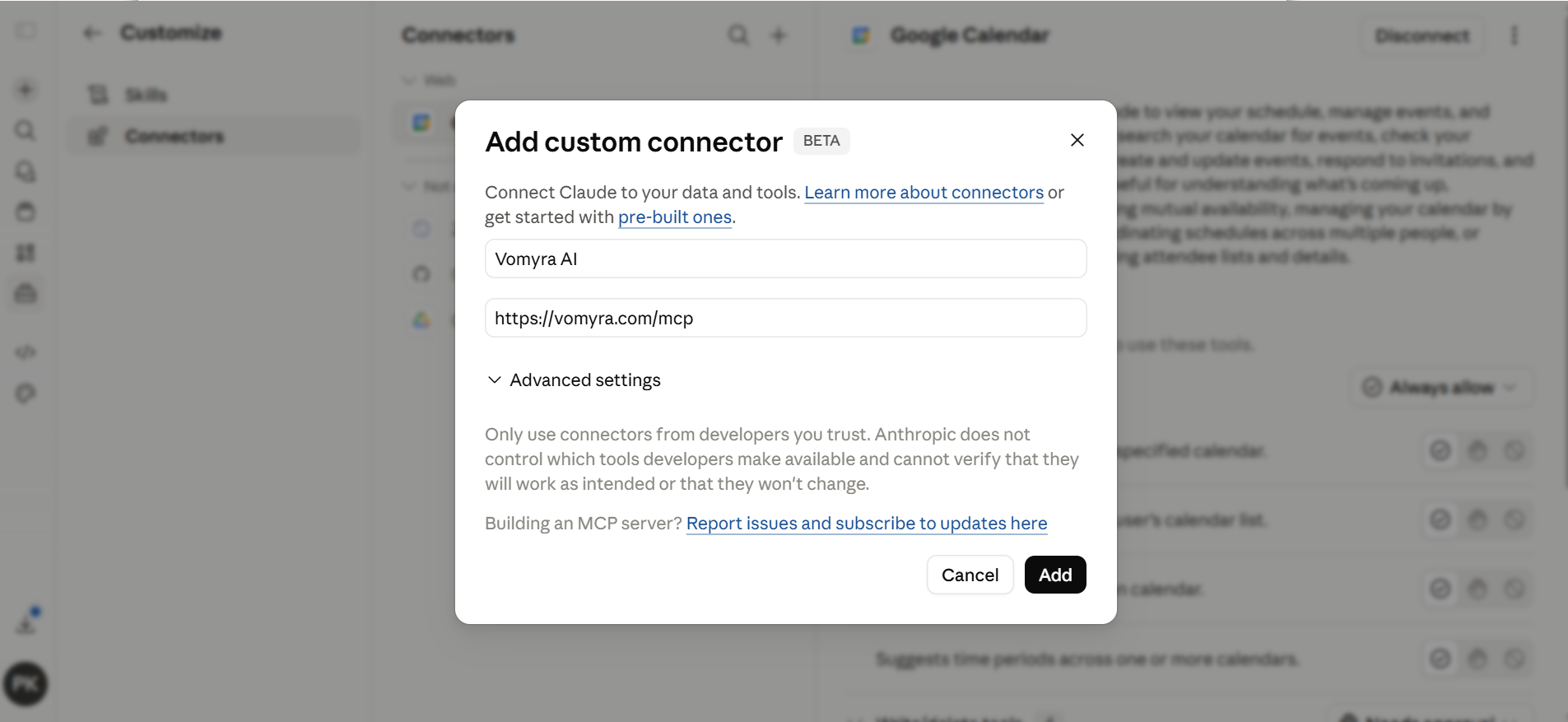
- 3
Sign in with your Vomyra account
Choose OAuth when prompted. Sign in through the popup and approve access - the
mcp:toolspermission gives Claude access to your assistants, tools, calls, and numbers. You'll be redirected back automatically.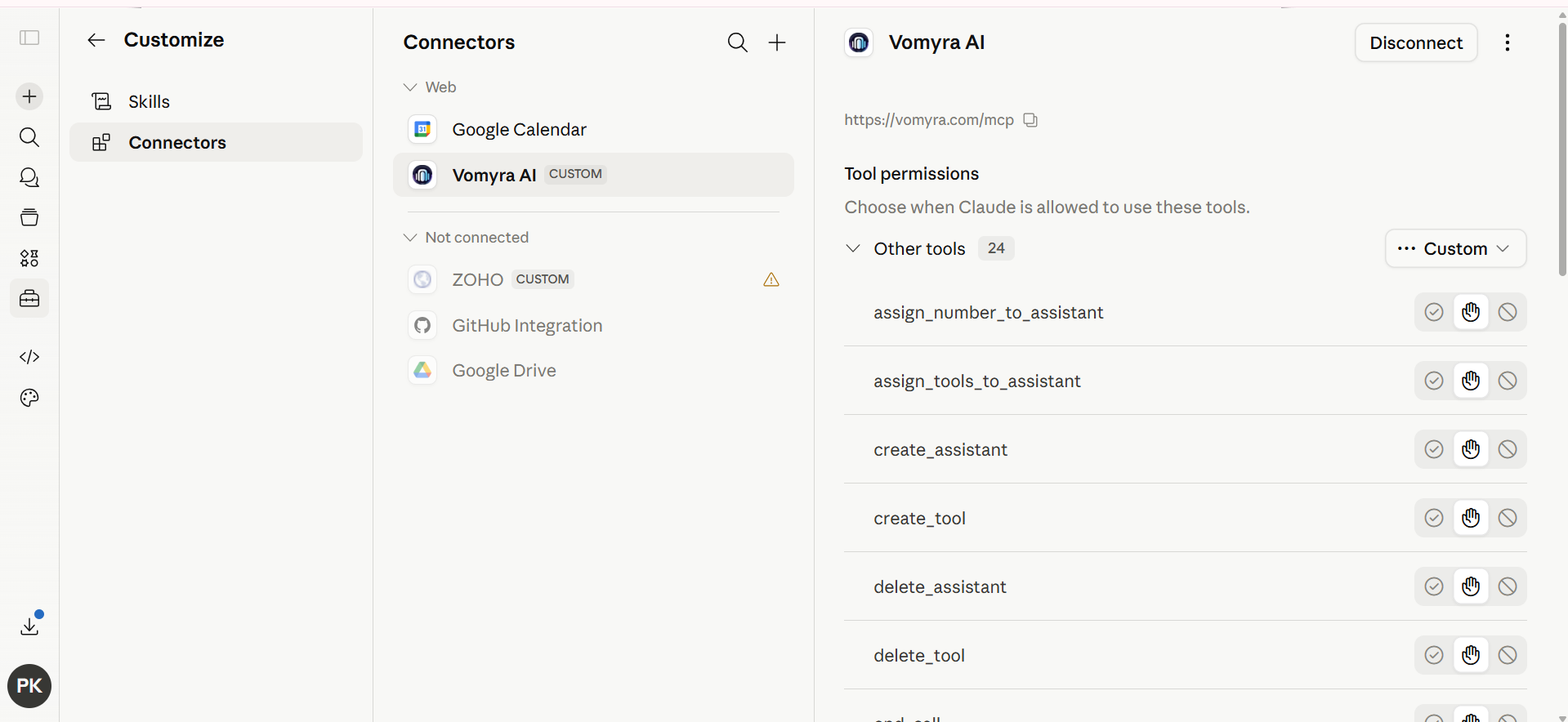
- 4
Start using Vomyra tools
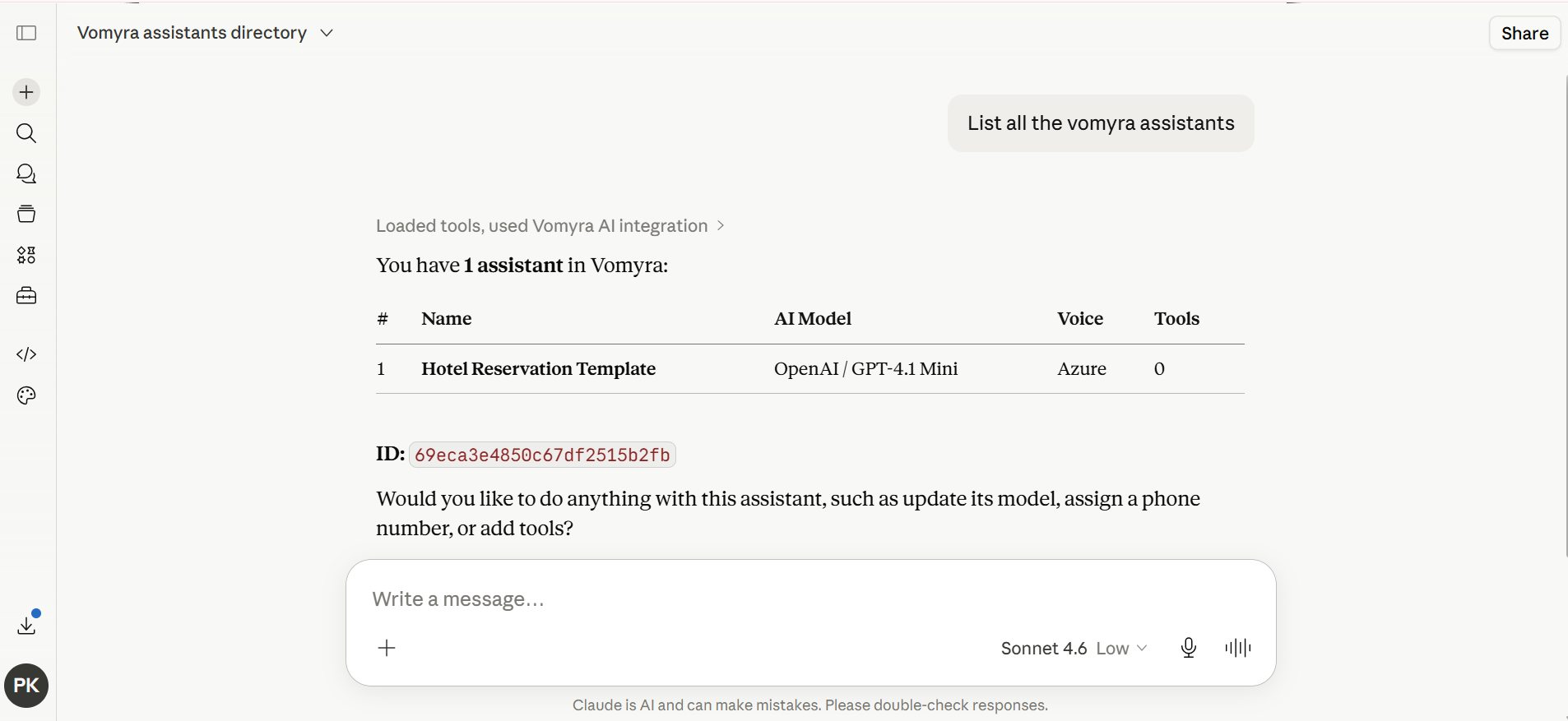
The connector becomes active in your conversations. Verify with: "List my Vomyra assistants."
Example - Claude listing your Vomyra assistants via MCP
Connect from Claude Desktop
Add Vomyra to claude_desktop_config.json:
- macOS:
~/Library/Application Support/Claude/ - Windows:
%APPDATA%\Claude\
{
  "mcpServers": {
    "vomyra": {
      "url": "https://console.vomyra.com/mcp",
      "type": "http"
    }
  }
}
Restart Claude Desktop after saving. On first use it opens a browser window for the OAuth flow. Access tokens are auto-refreshed every hour; refresh tokens last 30 days.