Create Your First Agent
A complete walkthrough of every configuration option for your Vomyra AI voice agent.
Dashboard overview
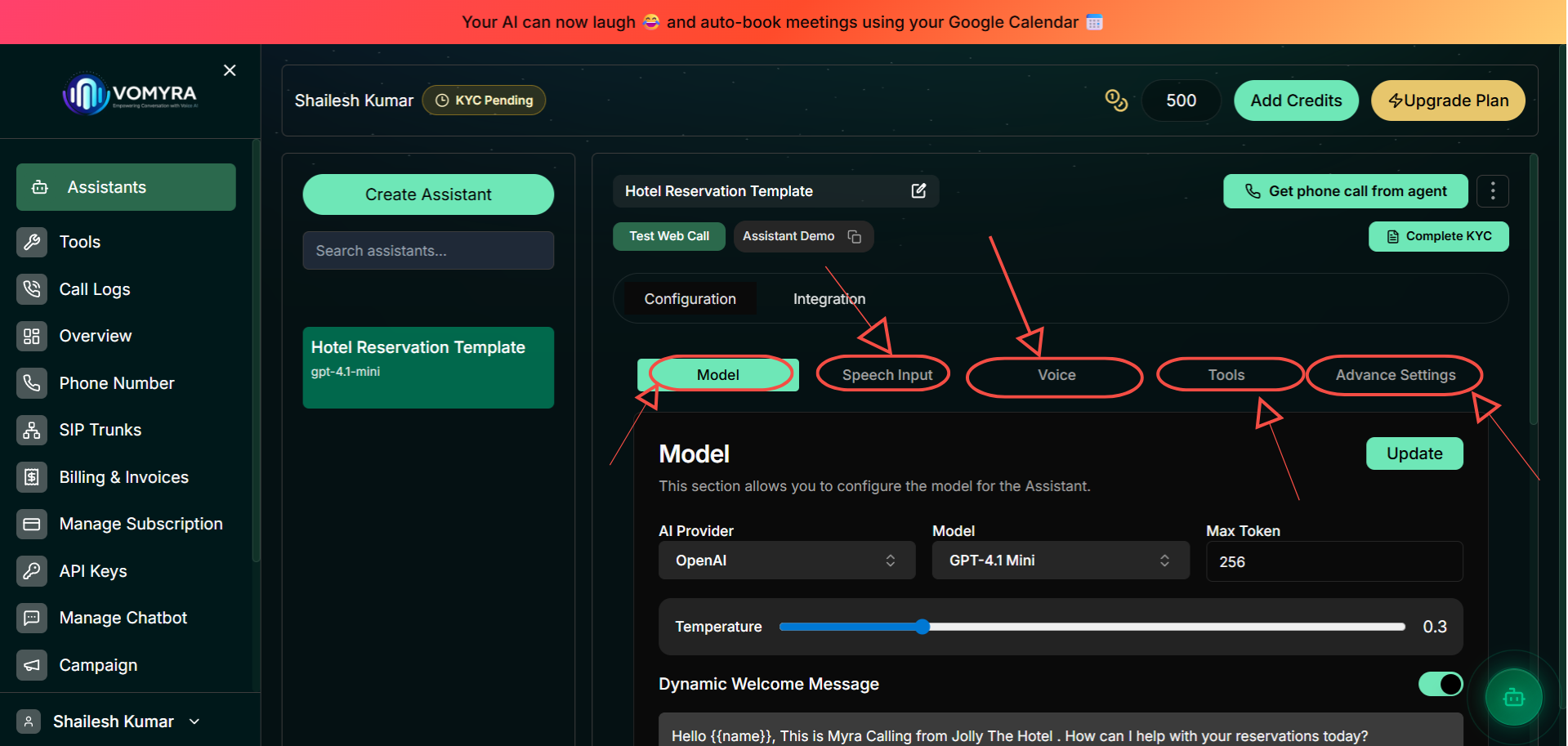
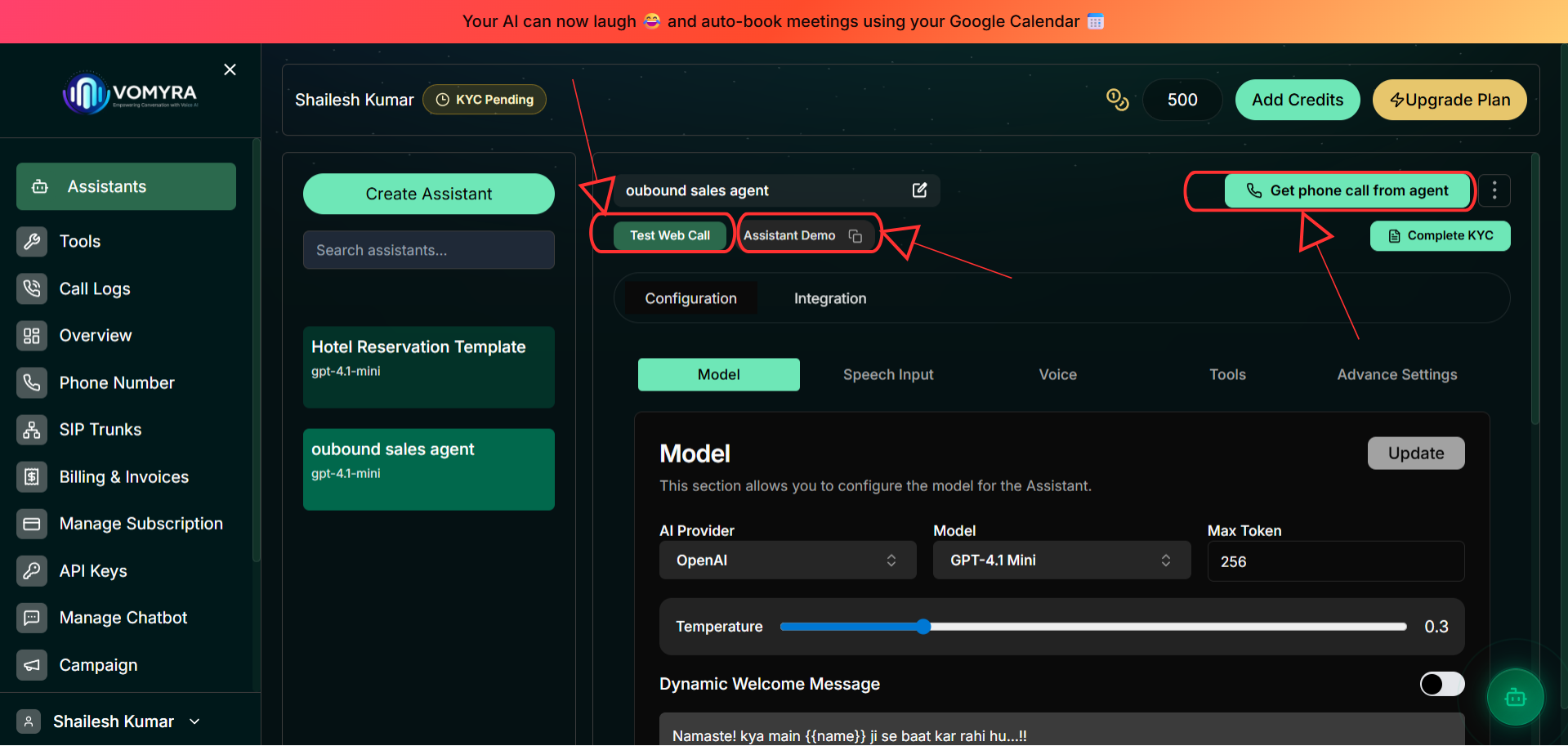
Each agent in Vomyra has three top-level tabs: Configuration, Integration, and Feature Setting. Most of the setup happens inside Configuration, which itself has five sub-tabs.
Model
AI provider, model, prompts
Speech Input
Transcription provider
Voice
TTS provider & voice
Tools
Integrations & functions
Advance Settings
Latency, timeouts & more
Model
Controls the AI brain behind your agent
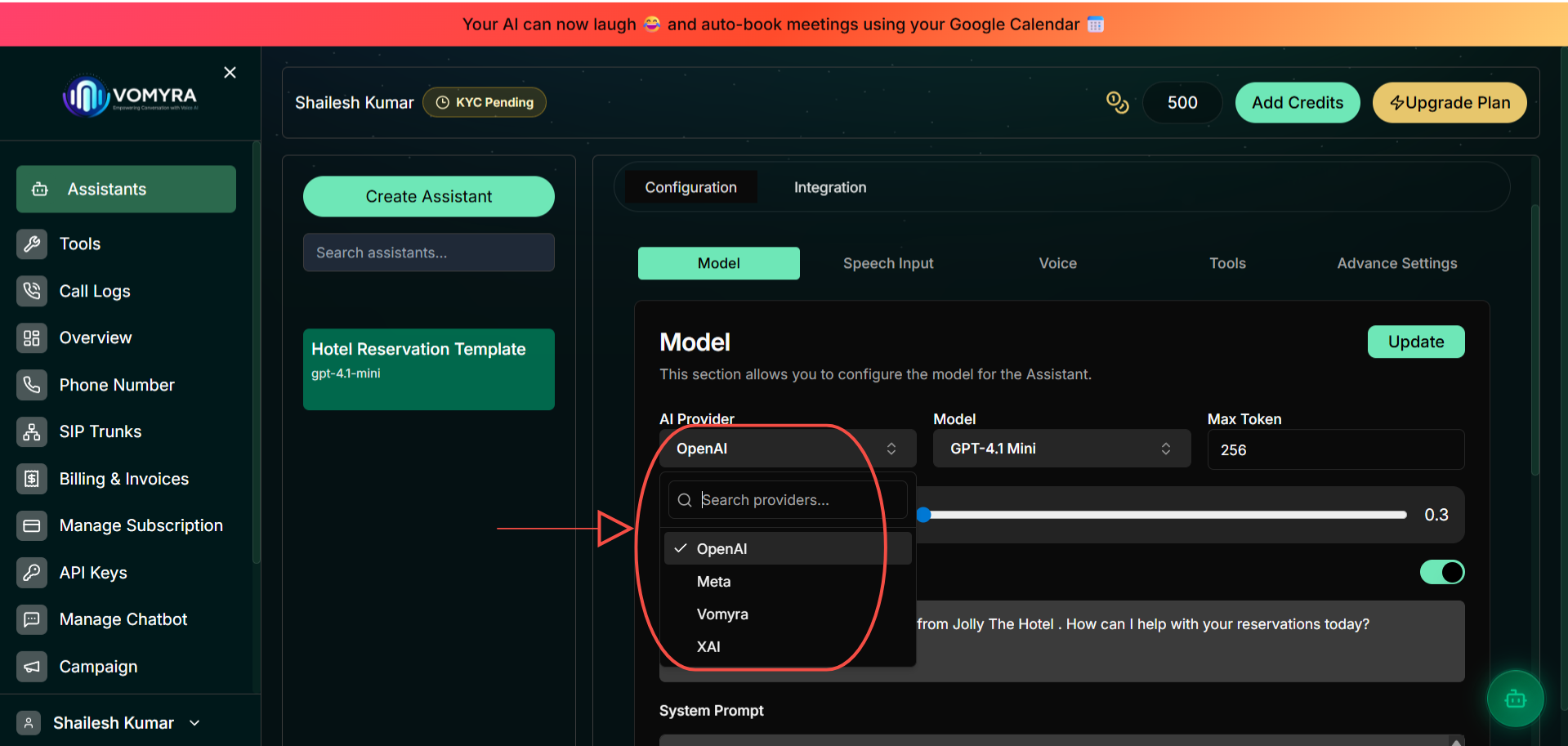
AI Provider
Choose the company whose language models power Myra. Each provider has different models, pricing, and strengths.
| Provider | Best for | Notes |
|---|---|---|
OpenAIRecommended | Most use cases | Widest model selection, strong Hindi support via GPT-4.1+ |
Meta | Open-weight models | Llama models, good for custom/private deployments |
Vomyra | Indian language optimization | Vomyra's own models, fine-tuned for Indian conversational patterns |
XAI | Latest Grok models | Grok family models from xAI |
Model
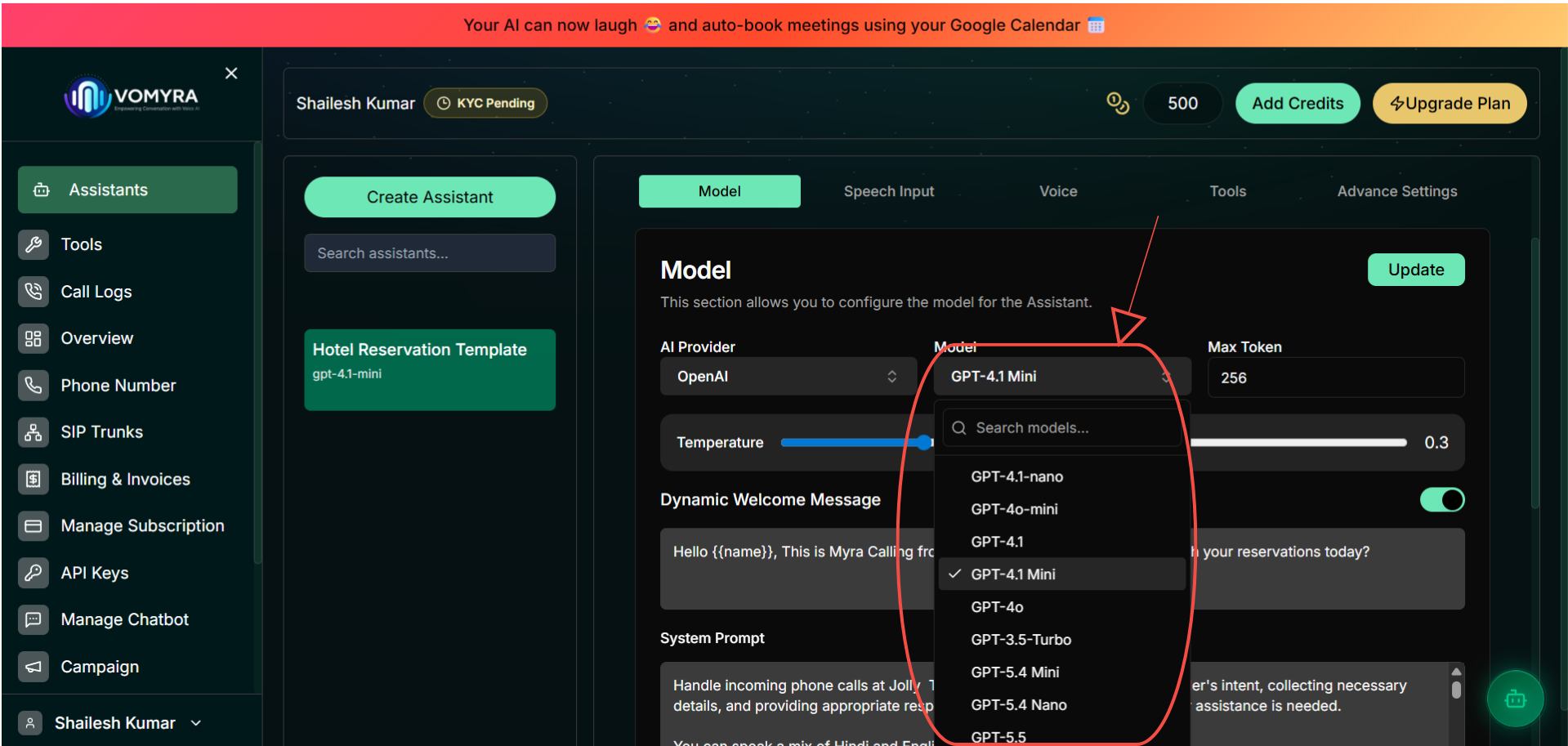
Once you select a provider, choose a specific model. The model determines response quality, speed, and cost per minute.
OpenAI Models
| Model | Speed | Quality | Best for |
|---|---|---|---|
GPT-4.1 Mini Start here | Fast | Most use cases — best balance | |
GPT-4.1 Nano | Fastest | High-volume, cost-sensitive calls | |
GPT-4o-mini | Fast | Good English & multilingual quality | |
GPT-4.1 | Medium | Complex reasoning and instructions | |
GPT-4o | Medium | Highest quality, complex conversations | |
GPT-3.5-Turbo | Very fast | Budget deployments, simple FAQs | |
GPT-5.4 Mini | Fast | Next-gen quality at mini cost | |
GPT-5.4 Nano | Fastest | Next-gen ultra-fast responses | |
GPT-5.5 | Medium | Most advanced, highest capability |
Temperature & Max Token
Temperature
Default: 0.3Controls how predictable vs. creative Myra's responses are. Lower = more consistent; higher = more varied.
0.0 – 0.3Consistent— Best for support & FAQ bots0.4 – 0.6Balanced— Good for sales & reservation agents0.7 – 1.0Creative— Varied responses, more human-like chit-chatMax Token
Default: 256Maximum number of tokens in Myra's response. 256 is suitable for conversational replies. Increase to 512–1024 for agents that need to give longer answers or read out detailed information.
Dynamic Welcome Message
The welcome message is the first thing Myra says when a call connects. Enable the toggle and write a greeting. Use template variables to personalise it at runtime.
| Variable | Replaced with |
|---|---|
{{name}} | The caller's name (if known) |
{{phone}} | The caller's phone number |
Example welcome messages:
Namaste! kya main {{name}} ji se baat kar rahi hu...!!Hello {{name}}! I'm Myra from Vomyra Support. How can I help you today?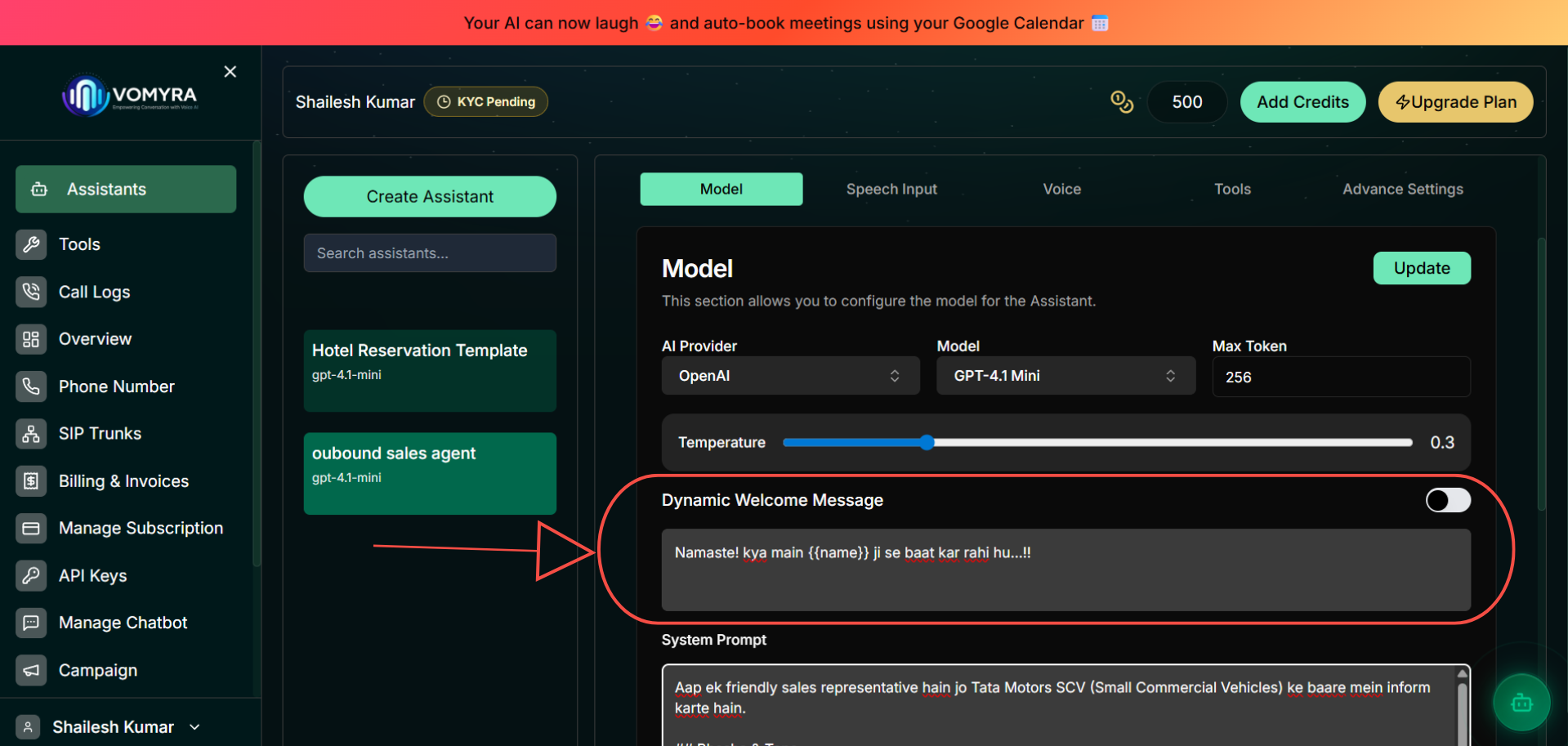
System Prompt
The system prompt is the most important configuration. It defines Myra's persona, language, tone, restrictions, and behaviour across the entire conversation. Write it clearly — Myra follows it closely.
Example — Outbound sales agent (Hindi):
Aap ek friendly sales representative hain jo Tata Motors SCV (Small Commercial Vehicles) ke baare mein inform karte hain.

## Bhasha & Tone
- Hindi mein baat karein by default
- Moderately expressive and engaging raho
- Excitement dikhao jab customer interest le

## Filler Words
Occasionally use natural fillers: "Actually", "Basically", "Sir", "Ma'am"

## Conversation Flow
1. Customer ka naam poochein aur use {{name}} se address karein
2. Use case ke hisaab se suitable SCV model suggest karein
3. EMI options aur finance schemes briefly mention karein
4. Site visit ya test drive schedule karne ki offer karein

## Guardrails
- Agar customer interested nahi, politely close karein
- Exact pricing ke liye dealer ke paas bhejein
- Finance baare mein: easy EMI options aur low down payment mention karein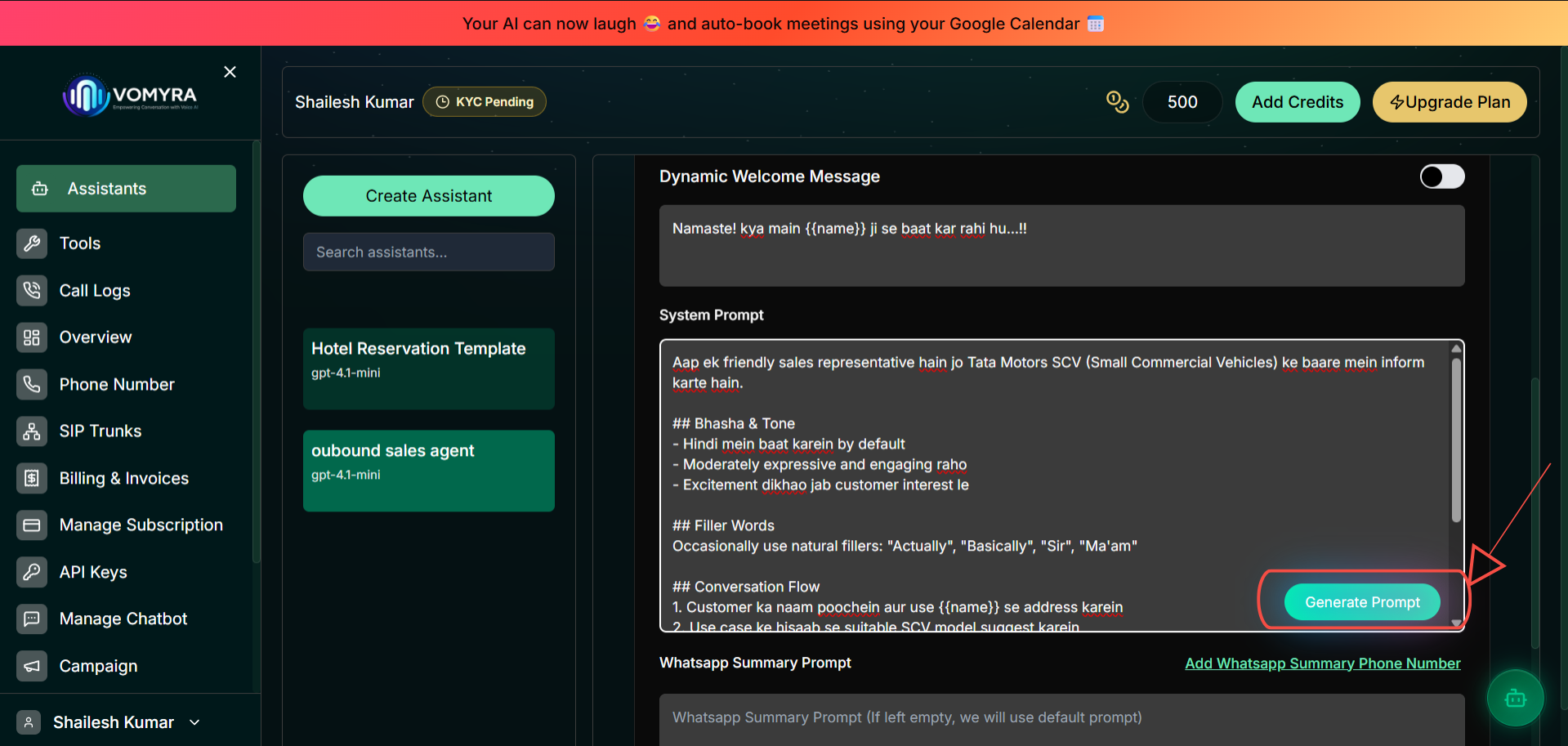
WhatsApp Summary Prompt
After each call, Vomyra can send a WhatsApp summary to a specified number. This is useful for managers or teams who want a quick post-call recap without listening to recordings.
- Click Add WhatsApp Summary Phone Number to register a number
- Leave the prompt field blank to use the default summary format, or write a custom prompt
Outcome Prompt
Define what a successful call outcome looks like (e.g., "appointment booked", "lead qualified"). This feeds into your analytics dashboard so you can track conversion across calls.
Speech Input
How Myra listens — the transcription provider
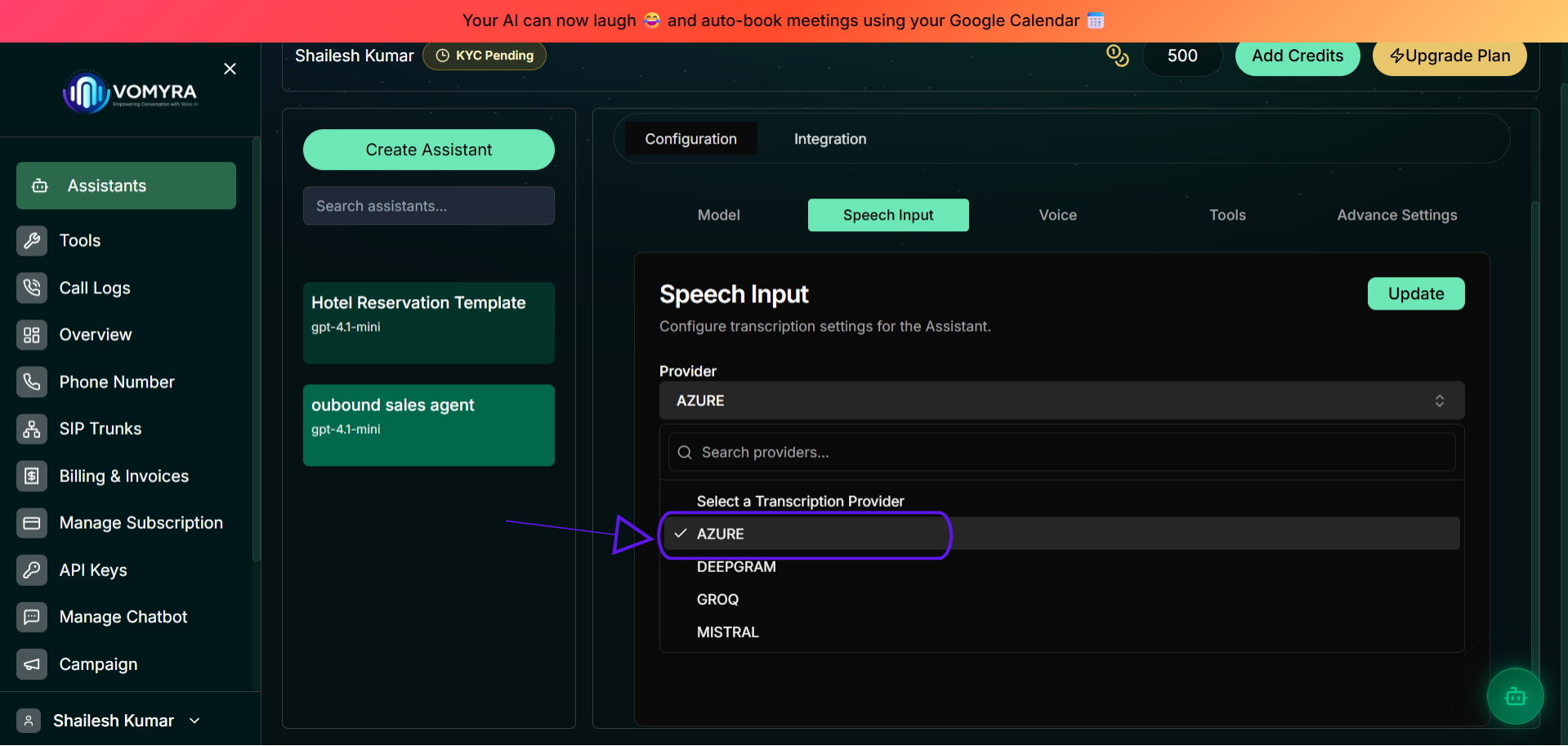
Speech Input controls which Speech-to-Text (STT) engine transcribes the caller's voice into text that Myra can understand. Your choice has a significant impact on accuracy for Indian languages.
| Provider | Indian Languages | English | Best for |
|---|---|---|---|
AzureRecommended for India | Hindi, Tamil, Telugu, Bengali — Indian deployments | ||
Deepgram | English-first support agents | ||
OpenAI | Multilingual agents, good general accuracy | ||
Groq | Ultra-low latency English transcription | ||
Mistral | European language deployments |
Voice
How Myra speaks — text-to-speech provider and voice
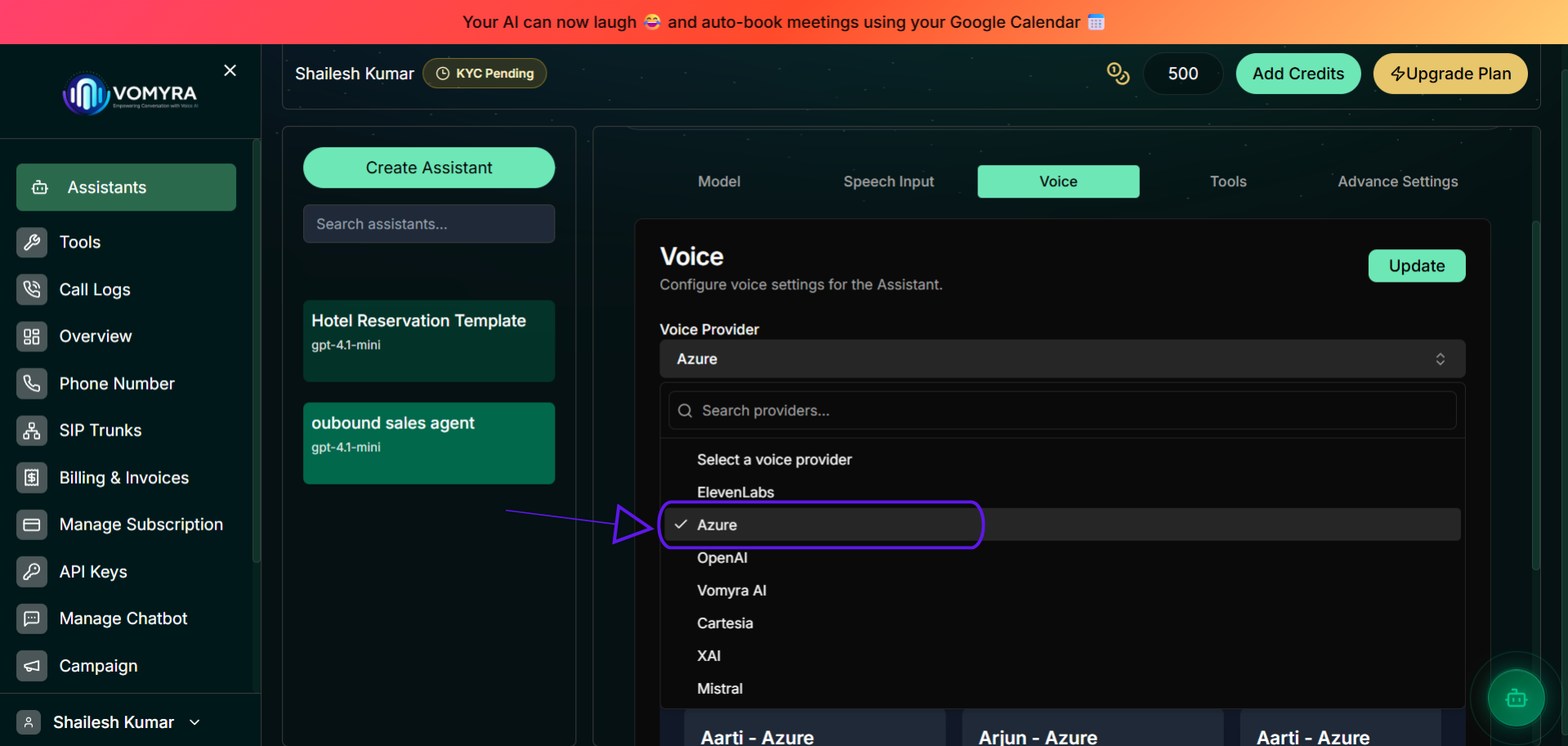
The Voice tab controls how Myra sounds to callers. First choose a Voice Provider (the TTS engine), then select a specific voice from the Featured Voices grid.
| Provider | Indian Voices | Naturalness | Best for |
|---|---|---|---|
Vomyra AI India pick | Native | Hindi/Indian deployments, optimised for Indian conversations | |
Azure | Hindi, Tamil, Telugu+ | Wide Indian language coverage, reliable, low latency | |
ElevenLabs | Limited | Most natural English voices, voice cloning | |
OpenAI | Limited | Consistent, natural-sounding English voices | |
Cartesia | Limited | Ultra-low latency, streaming voice | |
XAI | Limited | Experimental voices from xAI | |
Mistral | Limited | European language voices |
Featured Voices
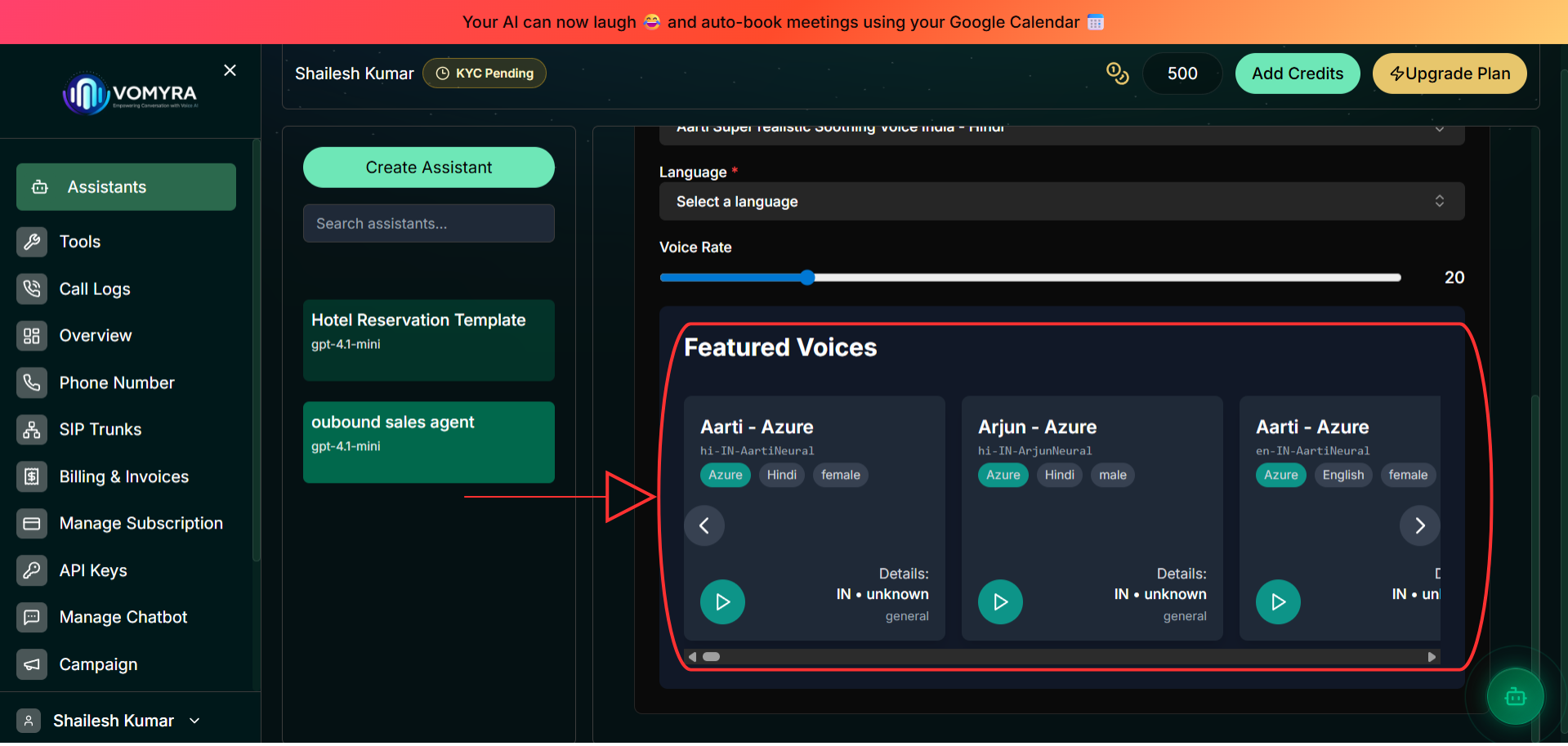
After selecting a provider, a grid of Featured Voices appears below the dropdown. Each card shows the voice name, provider, and a play button to preview. Select the one that best matches your brand tone.
Aarti
PopularProvider: Azure
Language: Hindi
Gender: Female
Ariun
Provider: Azure
Language: Hindi
Gender: Male
Custom voices
Provider: Various
Language: Multiple
Gender: —
Tools
Connect external systems to your agent
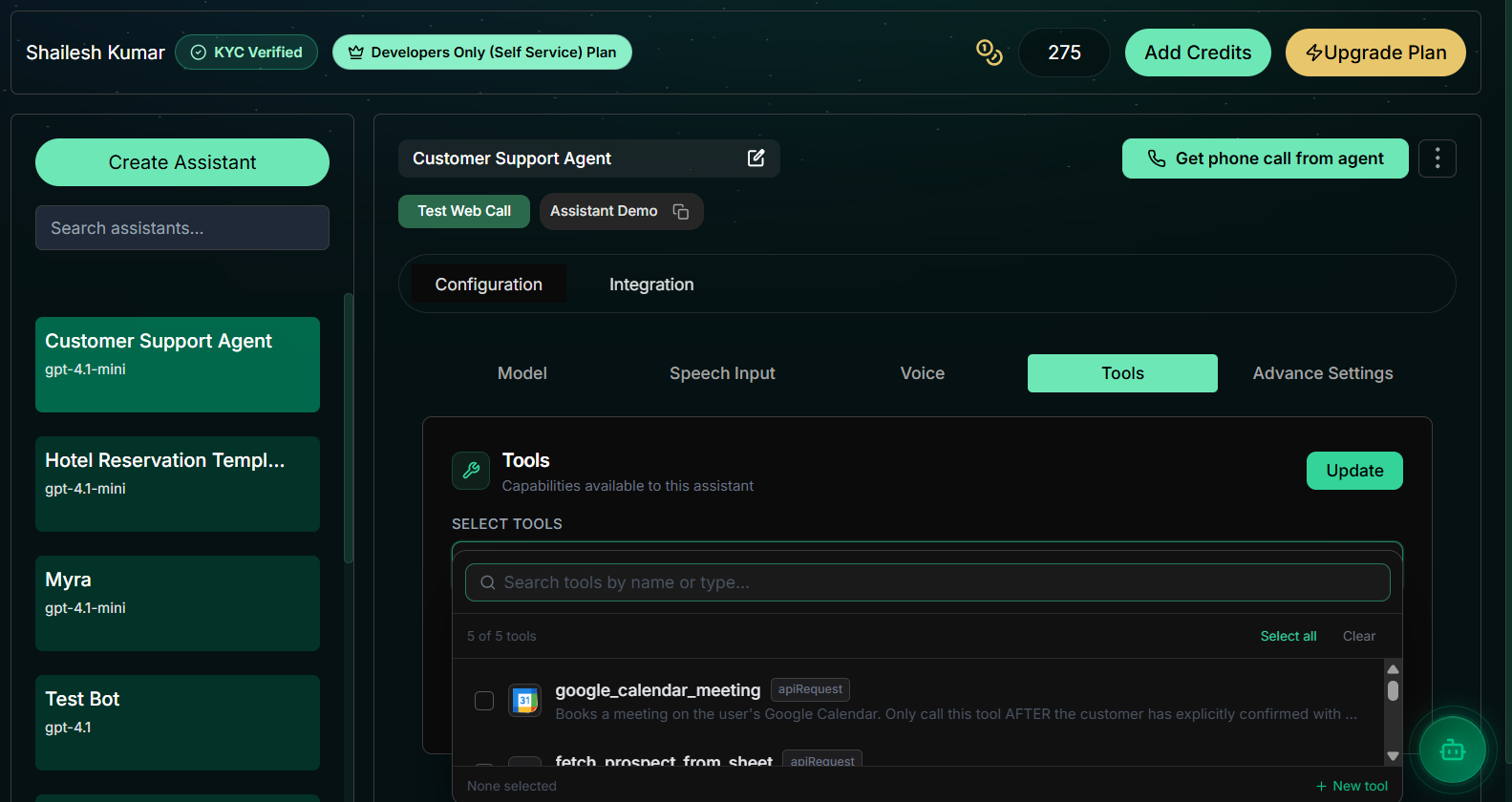
Tools allow Myra to take actions during a call — not just respond with words. When a caller asks "what's my order status?", Myra can call your API, fetch the answer, and read it out in real time.
Petpooja POS Sync
Take restaurant orders and push them directly into Petpooja, India's leading POS system — no manual entry.
Google Sheets
Log call data, customer info, or form responses directly into a Google Sheet after every call.
Custom API / Webhook
Call any REST API endpoint during a conversation — look up customer data, create tickets, check inventory.
Transfer to Human
Transfer the call to a human agent when needed — by intent, keyword, or customer request.
Advanced Settings
Latency, silence detection, call limits
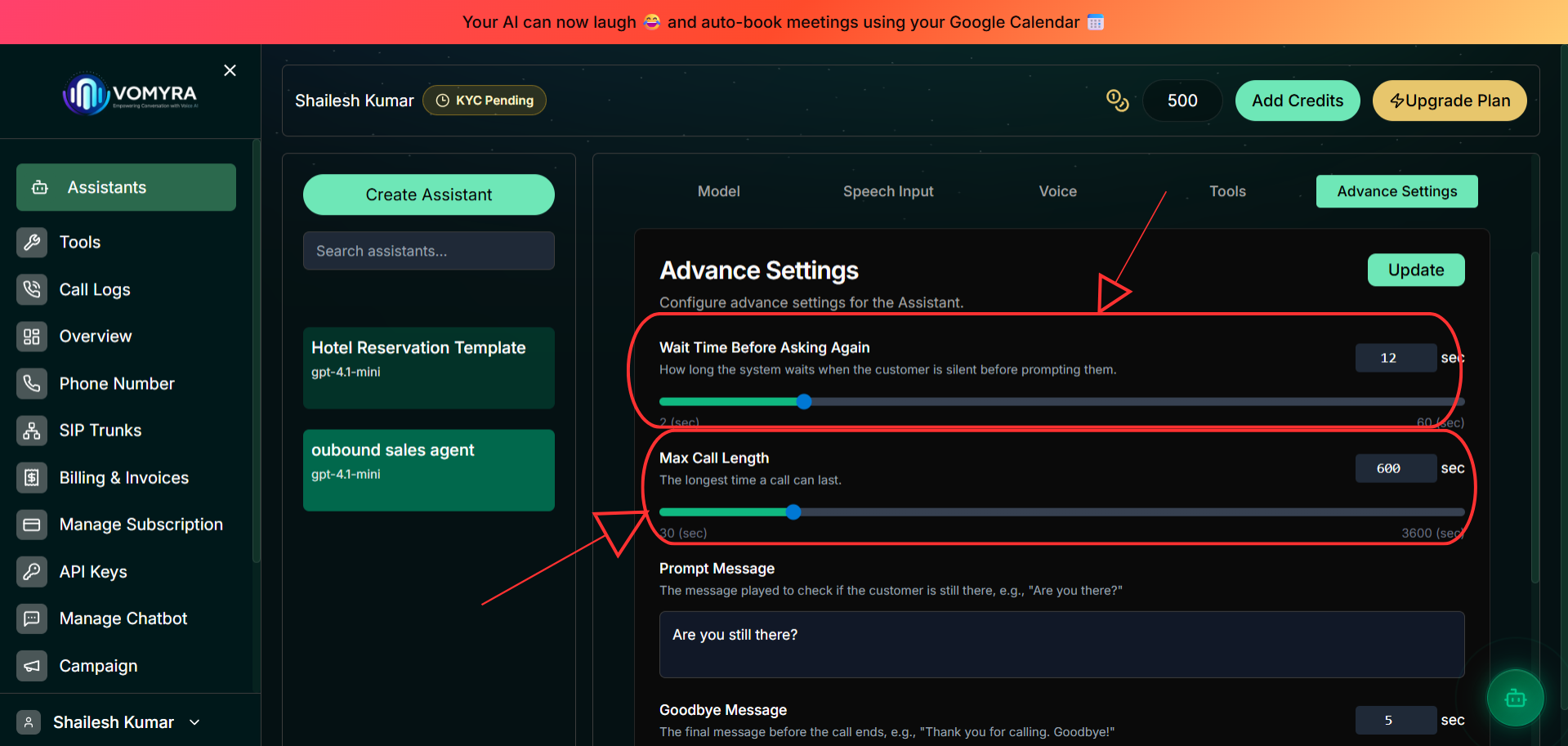
Advanced Settings are optional but allow you to fine-tune call behaviour for production deployments. Most defaults work well for getting started.
| Setting | What it controls |
|---|---|
| Response latency | How quickly Myra starts speaking after the caller pauses |
| Silence timeout | Seconds of silence before Myra prompts the caller again |
| Max call duration | Automatically end calls after a set time |
| Interruption handling | Whether Myra stops speaking when the caller talks over her |
| End call phrases | Words/phrases that should trigger the call to end |
Test your agent
Use the three built-in test methods at the top of the Configuration panel before connecting a live phone number.
Test Web Call
Start hereClick this button to open a browser-based voice session with Myra. Microphone access is required. The full conversation — speech, AI response, and voice output — runs in your browser. This is the fastest way to test changes.
Get phone call from agent
Myra will call your registered phone number. This is the most realistic test — you'll experience exactly what your customers hear, including voice quality, latency, and conversation flow over a real cellular connection.
Assistant Demo
Generates a web-based shareable demo link. Send it to your team or client for review before going live. The demo runs in a browser without needing a phone number.
Next steps
Phone Integration
Connect an Indian or global phone number to start receiving and making real calls.
Web SDK
Embed a voice interface directly into your website or app with the Vomyra Web SDK.
API Reference
Build custom integrations — trigger outbound calls, fetch transcripts, and manage agents via REST API.
Best Practices
Learn how to write great system prompts, handle edge cases, and optimise for Indian callers.