
Outbound Campaigns
Outbound Campaigns let you call a list of contacts using an existing assistant. Provide your contacts either through a connected Google Sheet or by uploading a CSV or Excel file. After you review the rows, map the phone number field, and set the follow-up window, Vomyra automatically places calls using the selected assistant.
Common campaign types
Example prompt fragment
You are Myra, calling from Skyline Properties. Follow up on a flat enquiry. Confirm they're still looking, ask budget and timeline, then offer a site visit if they're serious.
Example prompt fragment
You are Myra, calling from Smile Dental. Remind the caller they have an appointment tomorrow at [time]. Ask if they can still come. If not, offer to rebook.
Example prompt fragment
You are Myra from SunLife Insurance. Call about a policy renewal due in 5 days. Explain the renewal process briefly and ask if they'd like to proceed.
Example prompt fragment
You are Myra, calling to ask for quick feedback on the service yesterday. Ask one question: how satisfied were they on a scale of 1 to 5? Thank them and end.
Before you launch
Verify the following before starting a campaign.
Create a campaign
Vomyra supports two contact sources. Choose the option that fits your workflow.
Name, Mobile, and followUpdate are required for every Google Sheets contact row — these are the core fields Vomyra uses to place and schedule calls. You can add extra columns (e.g. Company, Notes) and the assistant can reference them during the call.
Option 1 - Google Sheets
Connect a Google Sheet as the campaign contact source
- 1Prepare your Google Sheet - Create a new Google Sheet with three required columns: Name, Mobile, and followUpdate. These are the core fields Vomyra uses to place and schedule calls. You can add any extra columns you need — the assistant can reference them during the call.
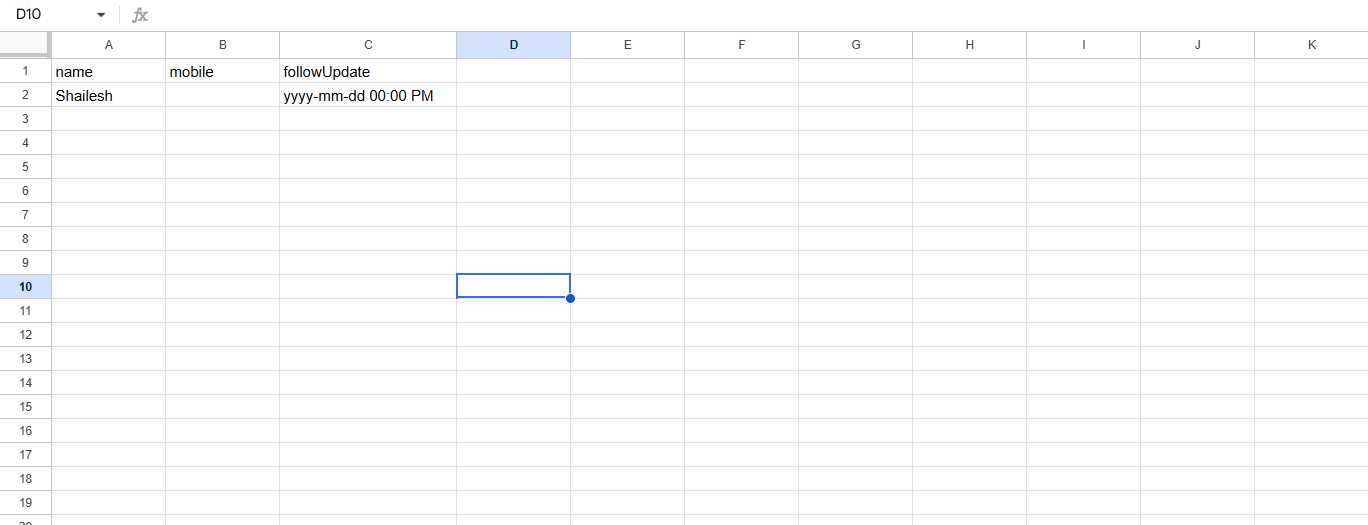
Name, Mobile, and followUpdate are the three required columns. Add rows to schedule calls. - 2Open your assistant - Go to the Assistants section and open the assistant you want to use for outbound calls.
- 3Go to the Integration tab - Inside the assistant, click the Integration tab.
- 4Connect Google Sheets - Connect your Google account and link the spreadsheet you prepared. Follow the steps shown on the Google Sheets integration page.
- 5Schedule calls in the sheet - To schedule a call, add a row in the sheet with the contact's Name, Mobile number, and the date and time in the followUpdate column. Vomyra reads the sheet and places the call at the specified time.
Need to set up Google Sheets first? See the Google Sheets integration guide.
Option 2 - File Upload
Upload a CSV or Excel file directly when creating the campaign
- 1Open Campaigns - Click Campaigns in the left sidebar.
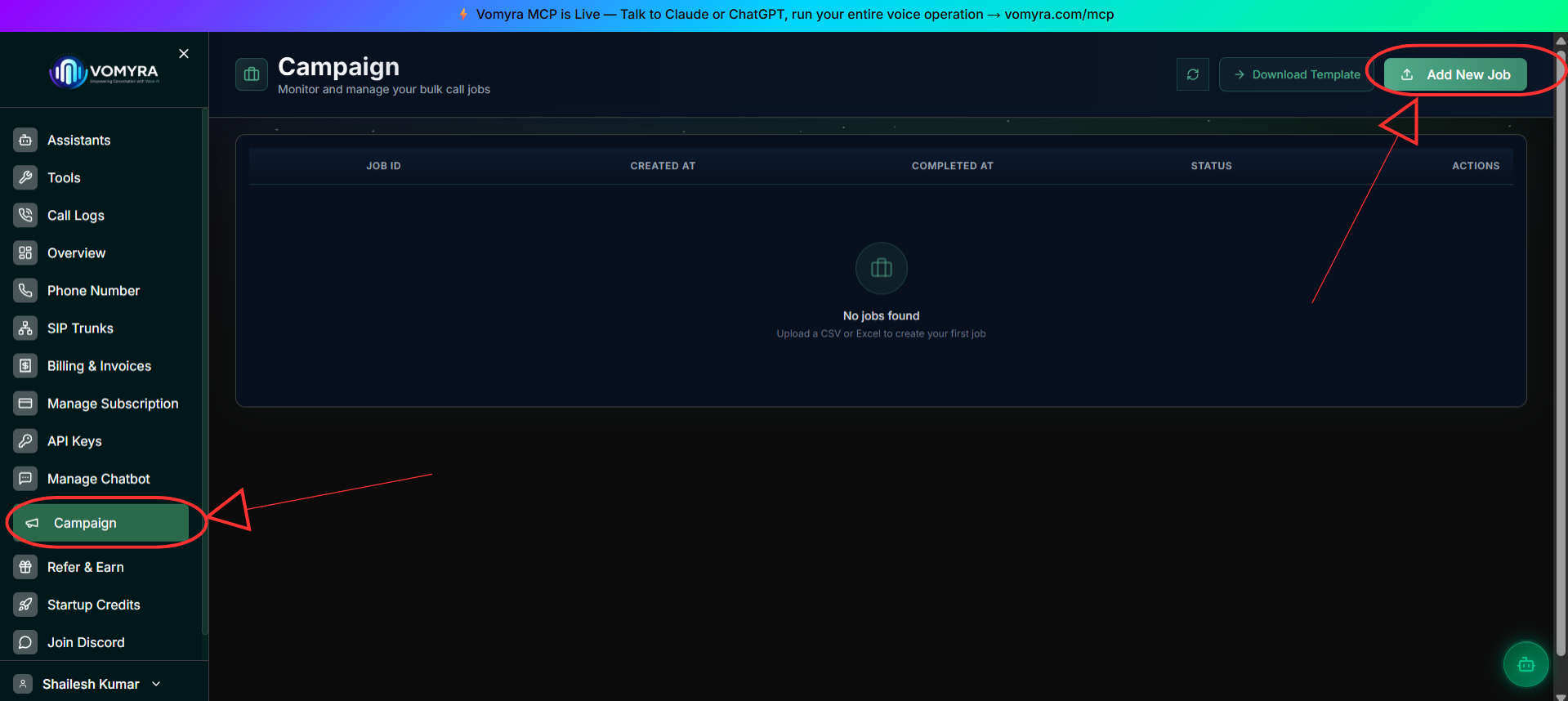
Open the Campaigns section from the sidebar. - 2Add New Job - Click Add New Job and enter a name for the campaign.
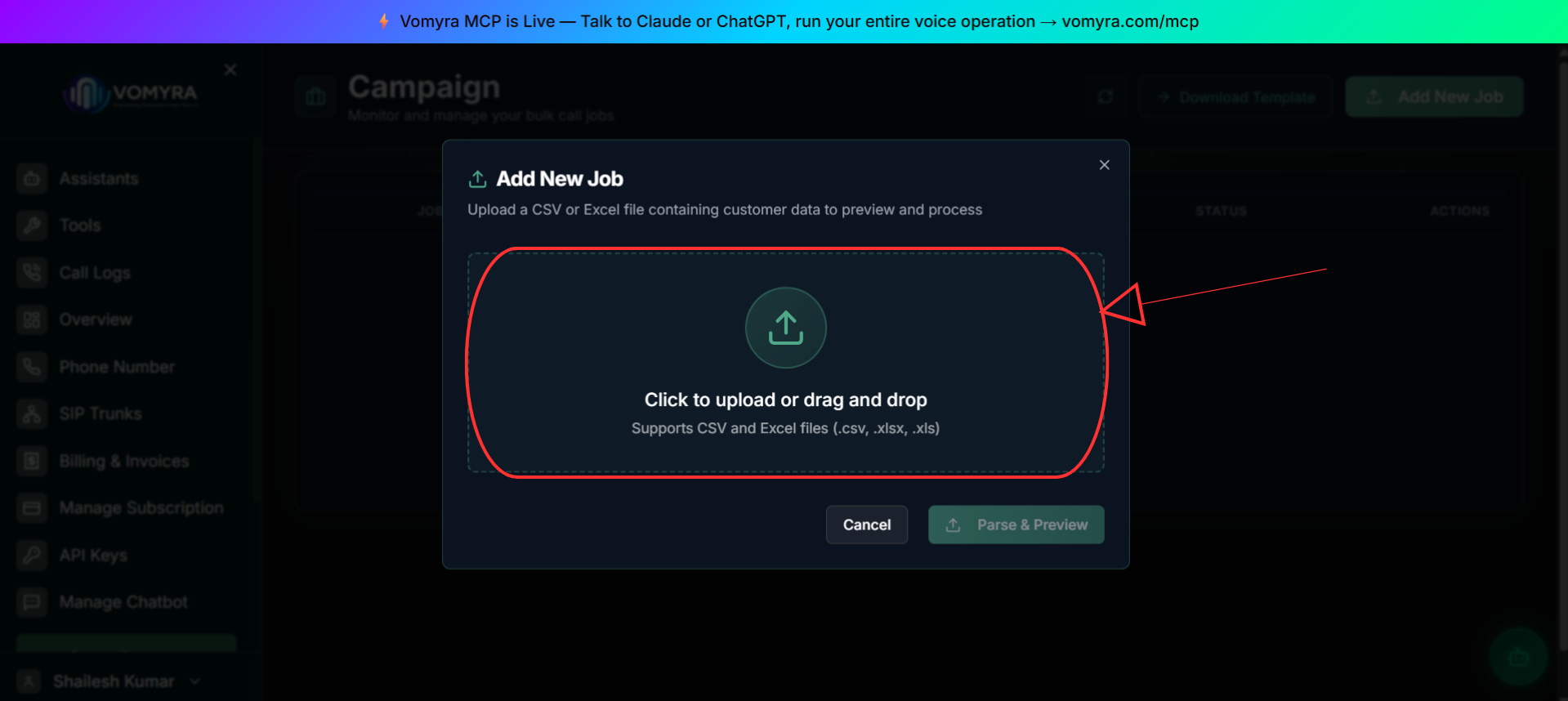
Start a new campaign job from the Add New Job dialog. - 3Select File Upload - Under Contact Source, choose Upload File.
- 4Upload your file - Upload a CSV or Excel (.xlsx) file containing your contact list.
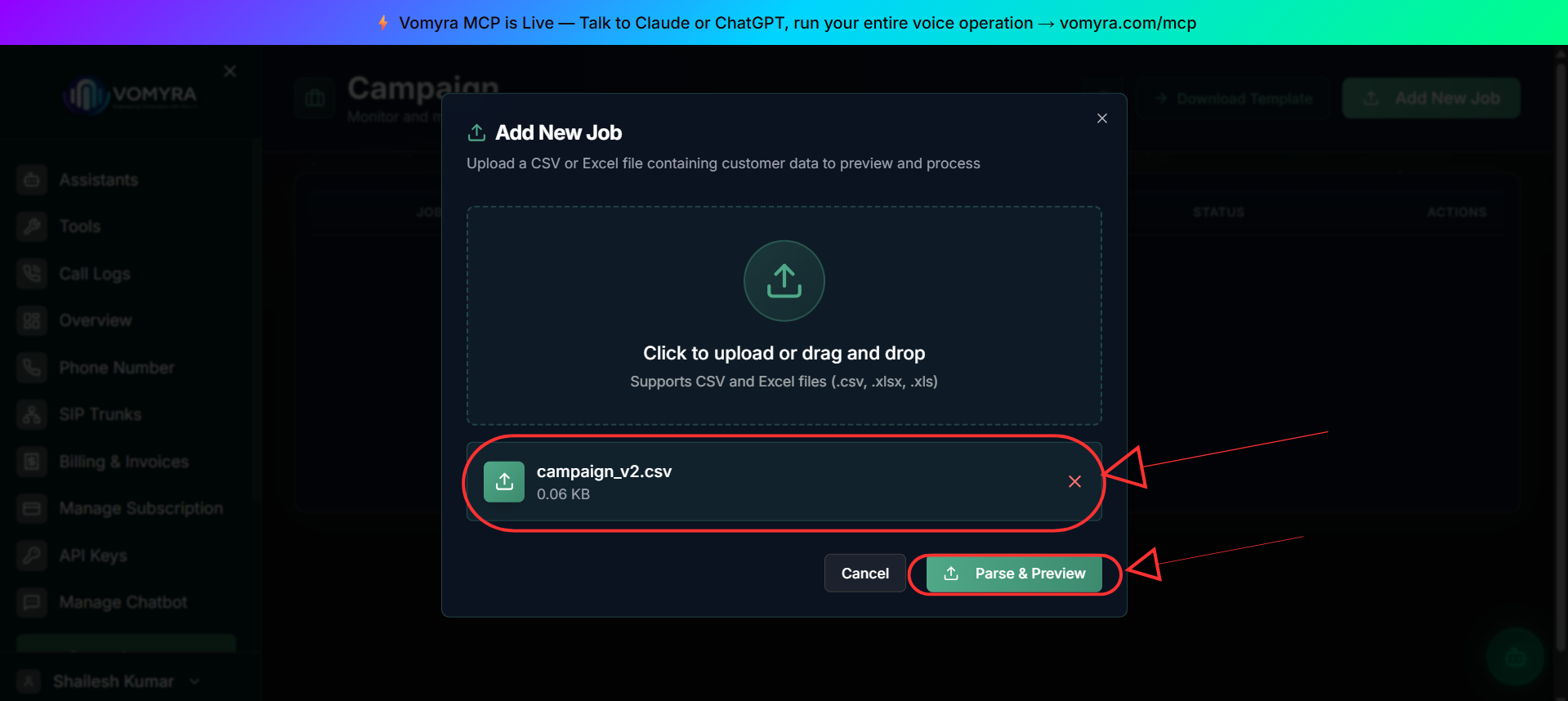
Upload the CSV or XLSX file and continue to preview. - 5Review and edit - A review popup appears so you can select the phone number column and edit rows before the campaign starts.
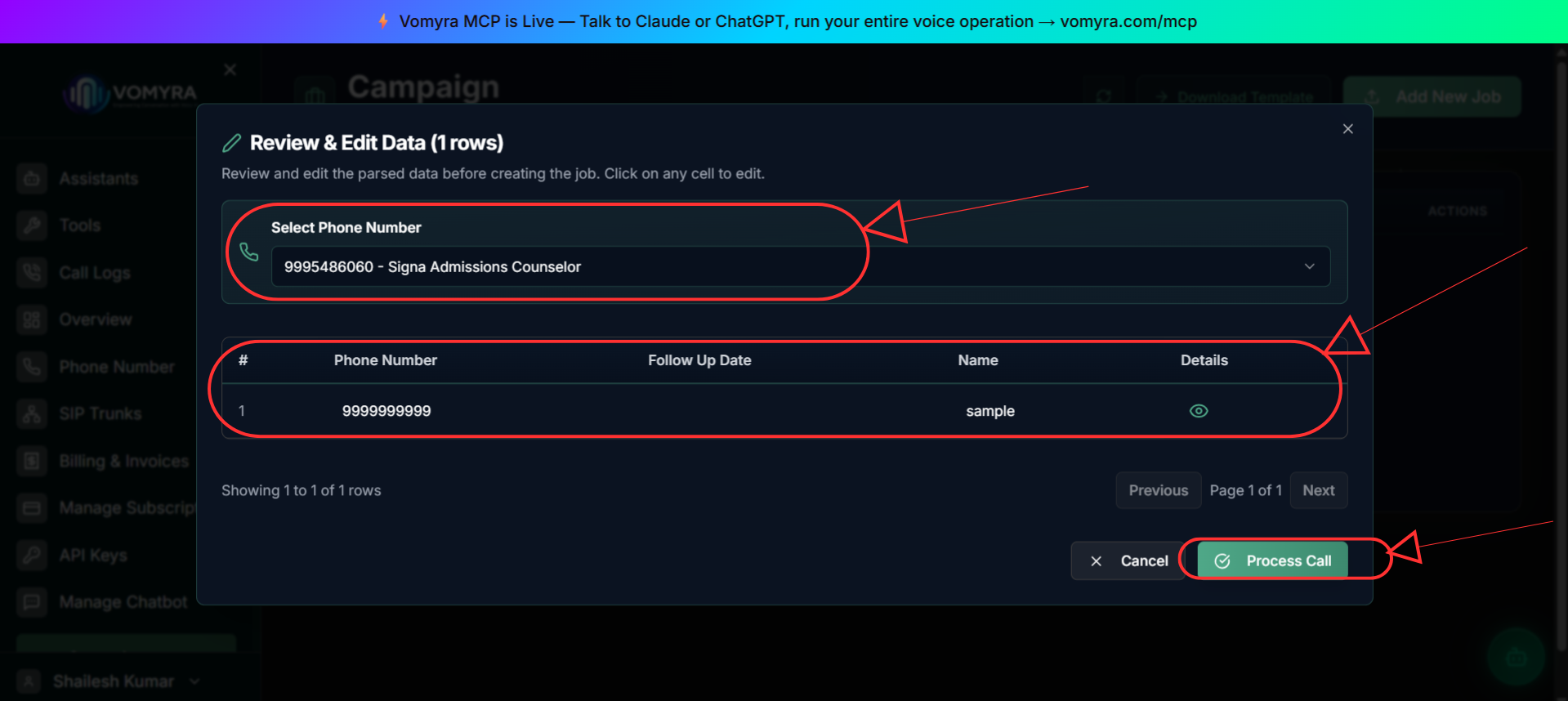
Review the rows, map the phone number column, and edit the data if needed. - 6Set call timing - Choose the timezone and follow-up window so calls start only within the hours you want.
- 7Select assistant - Choose the assistant that will make the outbound calls.
- 8Process Call - Click Process Call to initiate calls. Vomyra begins calling contacts automatically.
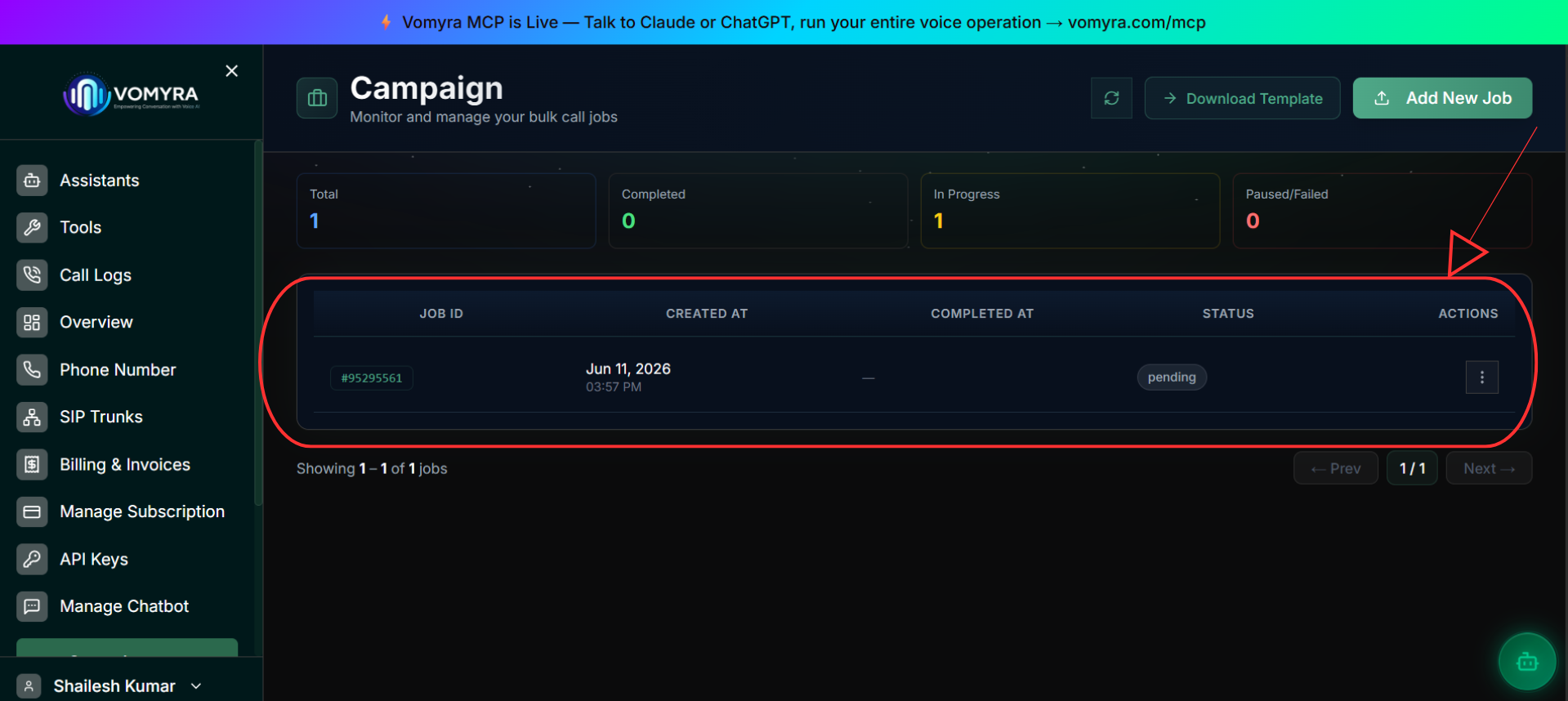
Click Process Call to begin outbound dialing.
Campaign metrics to track
Answered calls / total dialledLocal Indian numbers connect significantly better than unfamiliar international numbers.
Calls reaching goal / connected callsFor reminder campaigns, 'goal' = confirmed or rebooked. For lead qualification, goal = qualified or disqualified.
Opt-outs / connected callsA rising rate indicates poor targeting or too-frequent contact. Remove opt-outs from all future lists.
Non-connected calls / total dialledHigh no-answer rates on outbound may indicate the number is flagged by Truecaller. See Indian Phone Numbers.
India compliance - before you run a campaign
Respect DND / NDNC
Do not call numbers registered on India's TRAI Do Not Disturb registry unless you have explicit prior consent from that person. Vomyra does not automatically filter your list - you are responsible for scrubbing it.
DLT registration for promotional calls
Under TRAI's distributed ledger requirements, promotional outbound calls from 10-digit numbers must be registered on a licensed DLT platform (Vi, Airtel, Jio, or BSNL). Transactional calls (appointments, order confirmations, reminders for consented contacts) have a lighter requirement - verify with your carrier.
Calling hours
TRAI restricts telemarketing calls to 9am-9pm. Even for transactional calls, avoid calling after 8pm or before 8am - callers will not answer and it damages trust.
Identify clearly
Myra must identify who she is calling on behalf of in the first sentence. 'I'm Myra, calling from [Business]' - not just 'Hello.' This is both good practice and increasingly a legal requirement.
Honour opt-outs immediately
If a caller says 'don't call again', include a response in the prompt that acknowledges the request and logs it. Remove that number from all future campaign lists.
Related pages
Outbound Calling
How Myra makes outbound calls - the basics of one-off and triggered calls.
Indian Phone Numbers
Truecaller, DLT registration, and why local numbers connect better.
Google Sheets Integration
Connect Google Sheets to your assistant for lead capture and data workflows.
Webhooks & Events
Capture call outcomes in your backend as they happen.