Google Sheets
IntegrationGoogle Sheets allows Vomyra assistants to read, write, and update spreadsheet data during live conversations. Assistants can automatically store leads, update records, track appointments, log call outcomes, and manage customer information without requiring manual data entry.
Overview
What you can do with Google Sheets
Common use cases include CRM replacement workflows, lead tracking, appointment management, customer support logs, and reporting dashboards.
Setup
Connecting Google Sheets
Google Sheets is connected on a per-assistant basis. Once connected, your assistant can read and update spreadsheet data during live conversations.
Open the assistant you want to connect, then click the Integration tab.
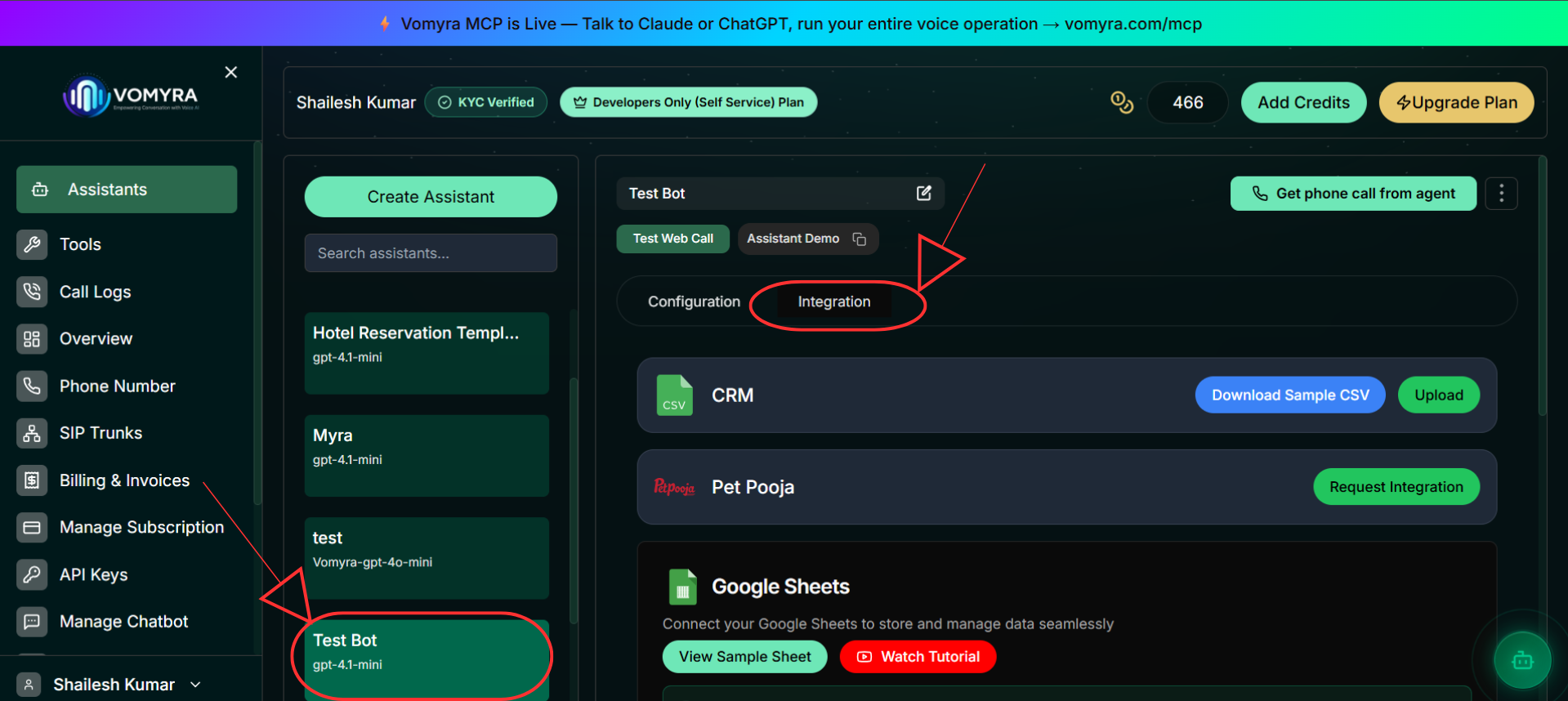
Click Google Sheets to expand the integration panel. You will see the current connection status and a Connect Google Sheets button.
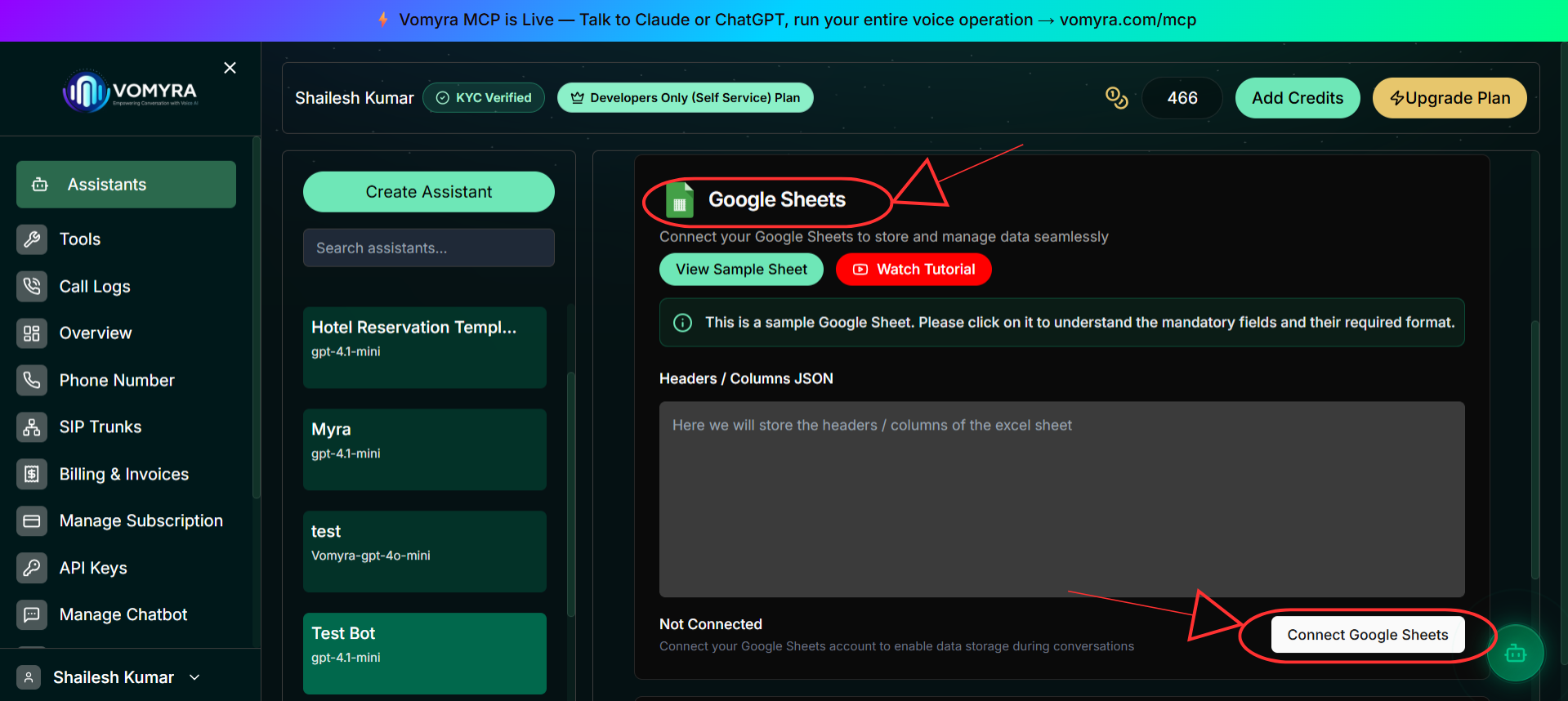
Click Connect Google Sheets. A modal will appear explaining the integration — click Connect Google Sheets again to be redirected to Google for authentication.
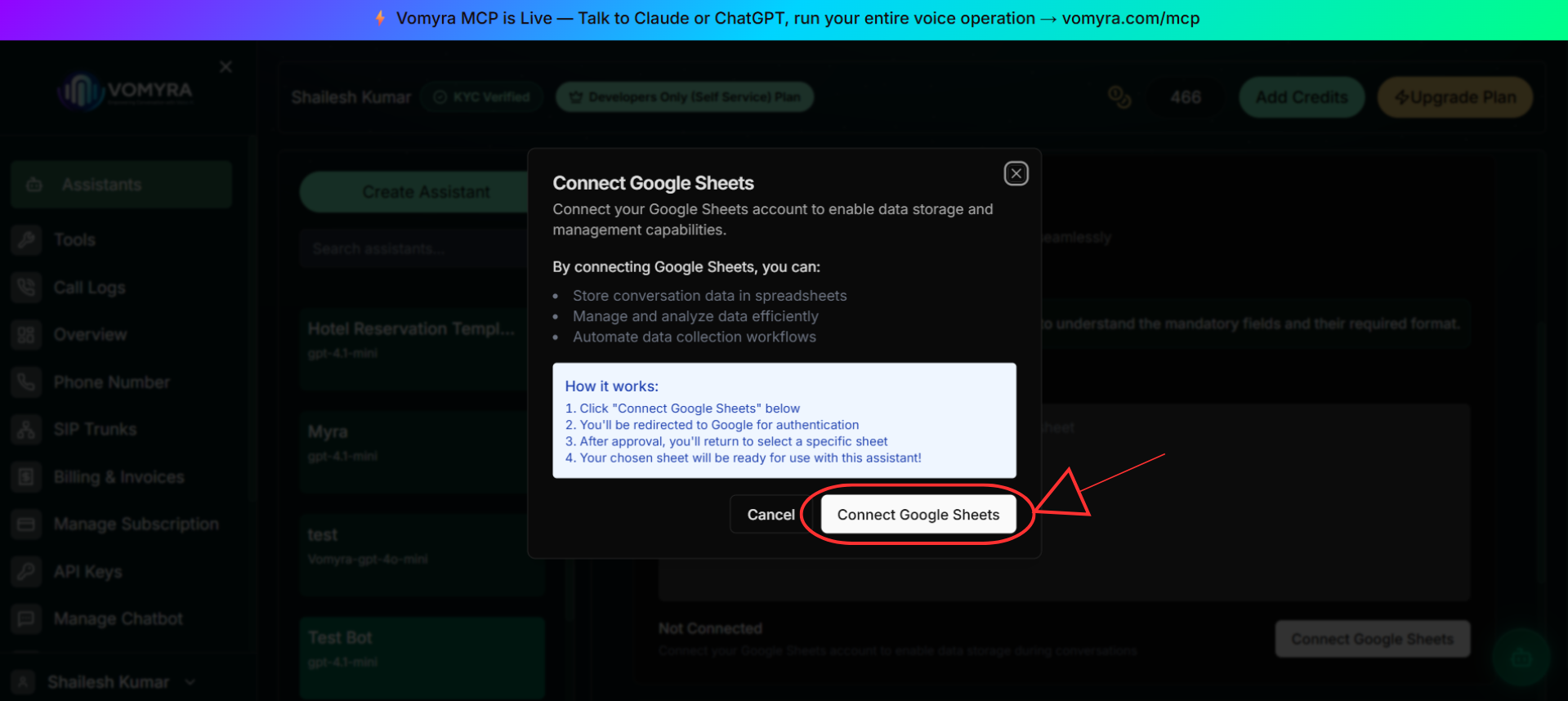
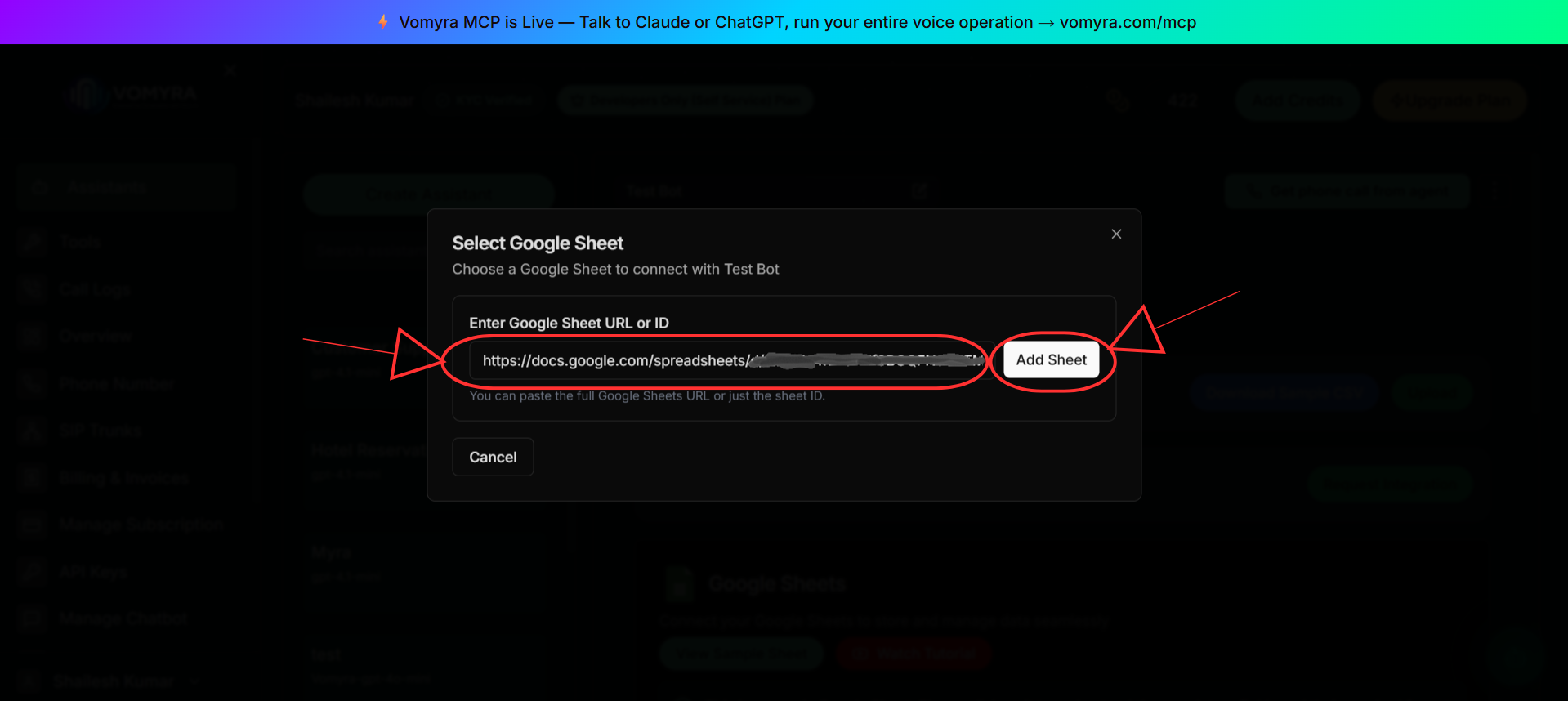
After completing Google authentication, paste the Google Sheet URL or ID into the input field and click Add Sheet.
Select the sheet tab you want to use (e.g., Sheet1). Vomyra reads the header columns from this tab. Click Connect Sheet to save.
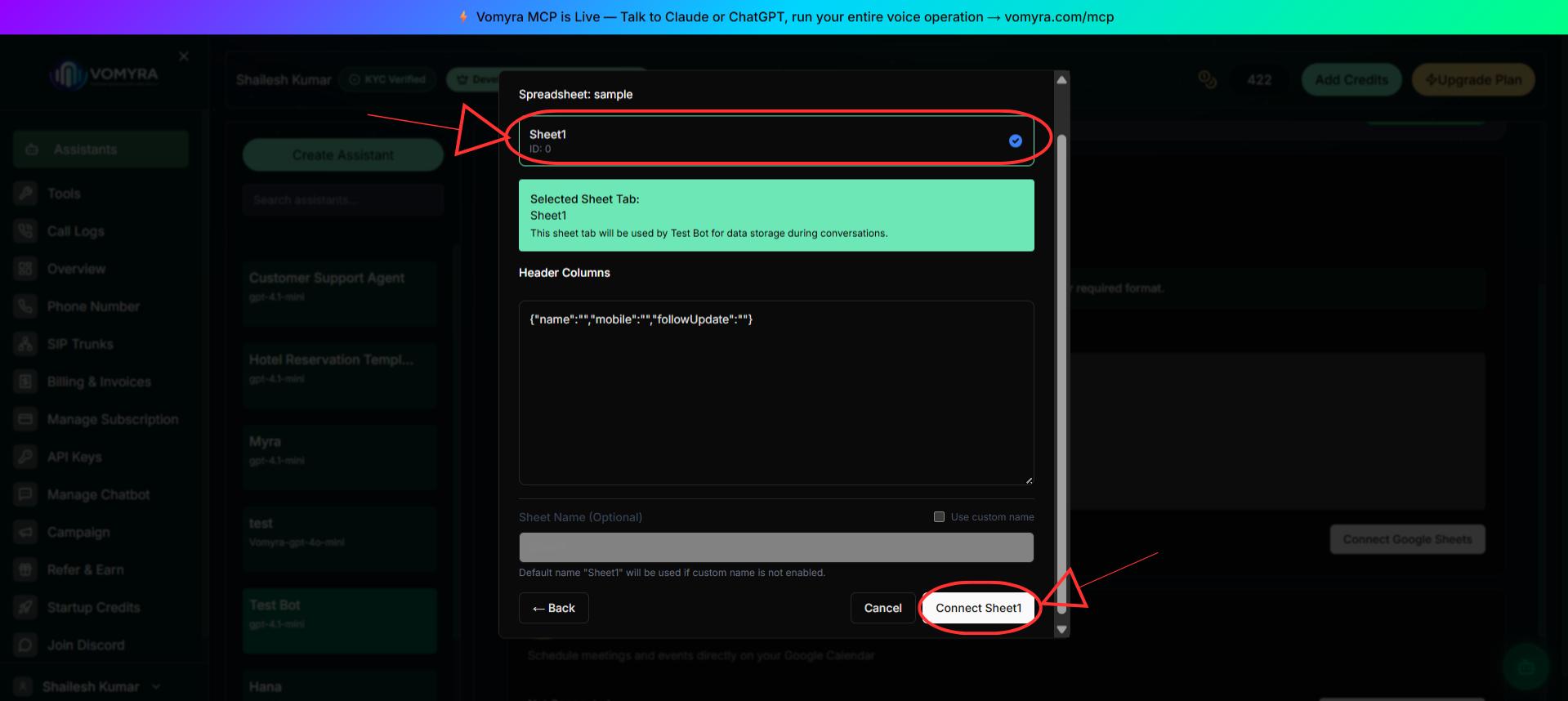
Once connected, the assistant can use the selected sheet during conversations for lead capture, appointment tracking, customer records, and other workflows.
How it works
How Google Sheets works
Once connected, Vomyra reads the header row from your selected sheet tab. The column names from that row determine what data fields the assistant can read and write during a conversation. You do not need to manually map fields — the assistant works with whatever columns are present in the connected sheet.
For example, if your sheet contains columns such as:
Example
If your prompt says:
“Whenever a caller expresses interest, save their name, phone number, company, and interest level to Google Sheets.”
Myra will automatically create a new row using the corresponding columns in the connected sheet.
Use Cases
What assistants can do with Google Sheets
From simple lead capture to full sales pipeline tracking — without a dedicated CRM.
Lead Capture
Store caller information automatically during every call.
Appointment Tracking
Maintain appointment records directly inside Google Sheets.
Customer Support Logs
Create support records automatically after every conversation.
Sales Pipeline Management
Track your entire pipeline without a dedicated CRM.
Use Google Sheets as a campaign contact source
Google Sheets can also be used to provide contacts for outbound campaigns. Connect a sheet with a list of phone numbers, map the phone column, set the follow-up window, and Vomyra will call each contact automatically using your selected assistant.
Outbound Campaigns