

Register Trunk on Vomyra
Once your SIP trunk is configured on Plivo, Twilio, or Telnyx, you need to register it inside the Vomyra dashboard. This links your carrier's trunk to a Vomyra AI agent so that inbound and outbound calls are routed correctly.
Before You Begin
Complete the relevant trunk setup guide before registering on Vomyra:
vomyra-trunk.pstn.twilio.com, XXXX.zt.plivo.com, or sip.telnyx.com), and the credentials (username + password) you created for the outbound trunk.Open the SIP Trunks Section
Log in to the Vomyra Dashboard
Go to vomyra.com and sign in to your account.
Navigate to SIP Trunks
In the left sidebar, go to SIP Trunks. Click Add New Trunk to begin registration.
Enter Trunk Details
Select Your Provider
Choose your SIP provider from the dropdown: Plivo, Twilio, or Telnyx. This helps Vomyra apply the correct codec and signaling settings automatically.
Enter the Gateway
Paste the Gateway you copied from your carrier during trunk setup. For example:
XXXXXXXXXXXXXXXXXXXX.zt.plivo.comvomyra-trunk.pstn.twilio.comsip.telnyx.com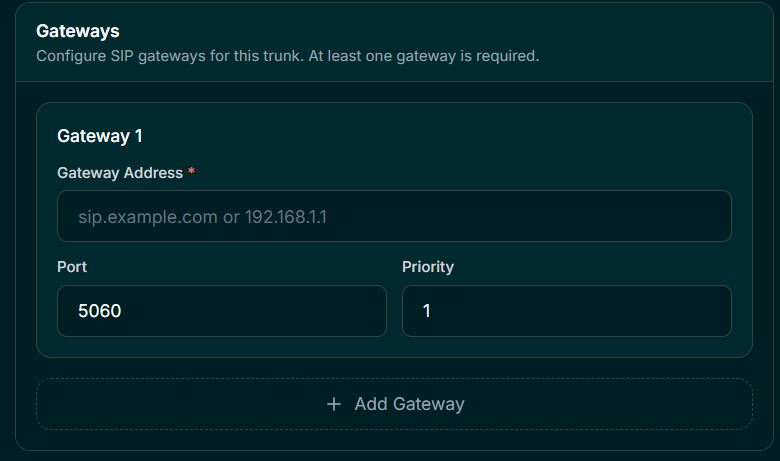
Enter Outbound Credentials
Enter the username and password you set in the credentials list on your carrier (e.g., vomyra_trunk and your chosen password). Vomyra will include these with every outbound SIP INVITE so your carrier can authenticate the request.
Save and Verify the Trunk
Save the Trunk
Click Save Trunk. Vomyra will validate the connection details and register the trunk. A green Active status badge confirms the trunk is reachable.
Verify with a Test Call (Recommended)
Make a test call to confirm the full path works:
- 1Dial your registered DID number from a regular phone.
- 2Confirm the AI agent answers the call (inbound path via your carrier → Vomyra).
- 3Use the Vomyra dashboard to trigger an outbound test call and verify the call connects through your carrier.
Add a Phone Number to the Trunk
After saving the trunk, add your DID phone number to it so inbound calls are correctly routed to Vomyra.
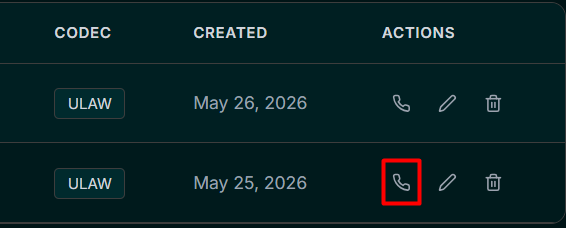
Open the trunk's phone number action
Navigate to vomyra.com → SIP Trunks. In the trunk list, find your trunk and click the phone icon in the actions column to open the phone number assignment panel.
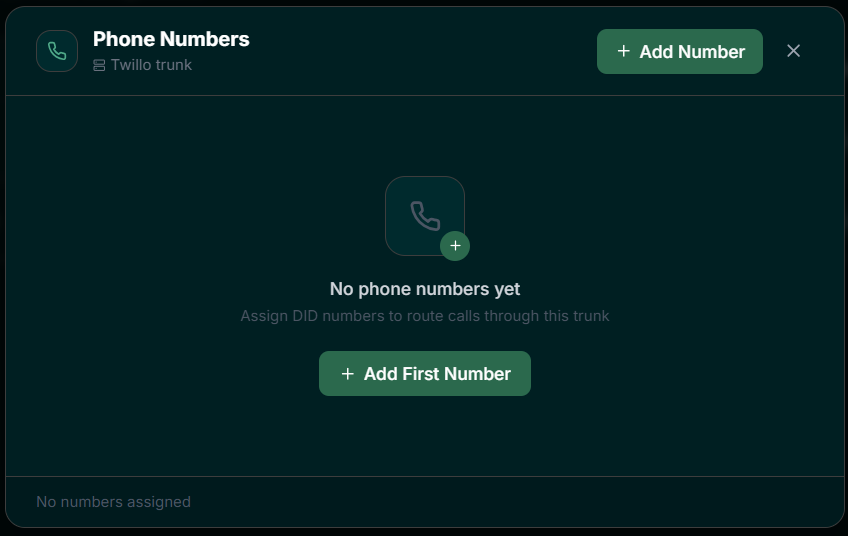
Add your DID number
In the panel that opens, enter your DID phone number in E.164 format (e.g., +14155552671 or +919876543210) and click Add.
Assign the Trunk to an AI Agent
With the trunk registered, you can now link your DID numbers to Vomyra AI agents.
Open Phone Numbers Settings
Navigate to Phone Numbers → Active Numbers in the Vomyra dashboard. Your registered DID numbers will appear in the list.
Link to an Agent
Click on a number, then under Inbound Settings, select the AI agent you want to handle calls on that number. Click Save. The number is now live.
Troubleshooting
Outbound calls fail with 403 Forbidden
The credentials on Vomyra do not match those on your carrier. Re-enter the username and password in the trunk settings on both sides.
Inbound calls connect but no audio
Ensure Secure Trunking (SRTP) is disabled on your carrier and Symmetric RTP is enabled. Vomyra does not support SRTP.
Inbound calls do not ring the agent
Confirm the DID number is linked to an AI agent in Phone Numbers → Active Numbers and that the inbound trunk on your carrier correctly points to sip:98.70.52.39:5060.
You're All Set
Your SIP trunk is registered and your AI agent is live. Inbound calls from your carrier route directly to Vomyra, and outbound calls leave through your trunk. You can manage all trunk settings, credentials, and agent assignments from vomyra.com.